This is the abridged developer documentation for GymMark
# GymMark Docs
> Set up and run GymMark on your gym's WordPress site.
[Getting started](/get-started/)What GymMark adds to your site and the first settings to check. [Booking forms](/guide/forms/forms-mode/)Turn forms on safely, test them privately, then go live. [Connect HighLevel](/integrations/highlevel/)Send leads straight into a HighLevel sub-account — no Zapier. [Developers & AI](/developers/)Exact names for settings, data, hooks and the booking-button contract.
# Location Schedule block
> Show one location's class schedule as a weekly or monthly calendar, with filters and booking buttons.
The **Location Schedule** block shows the class schedule for one location. Visitors can flip between weeks or months, filter by program, instructor, time of day and level, and click a button to book. 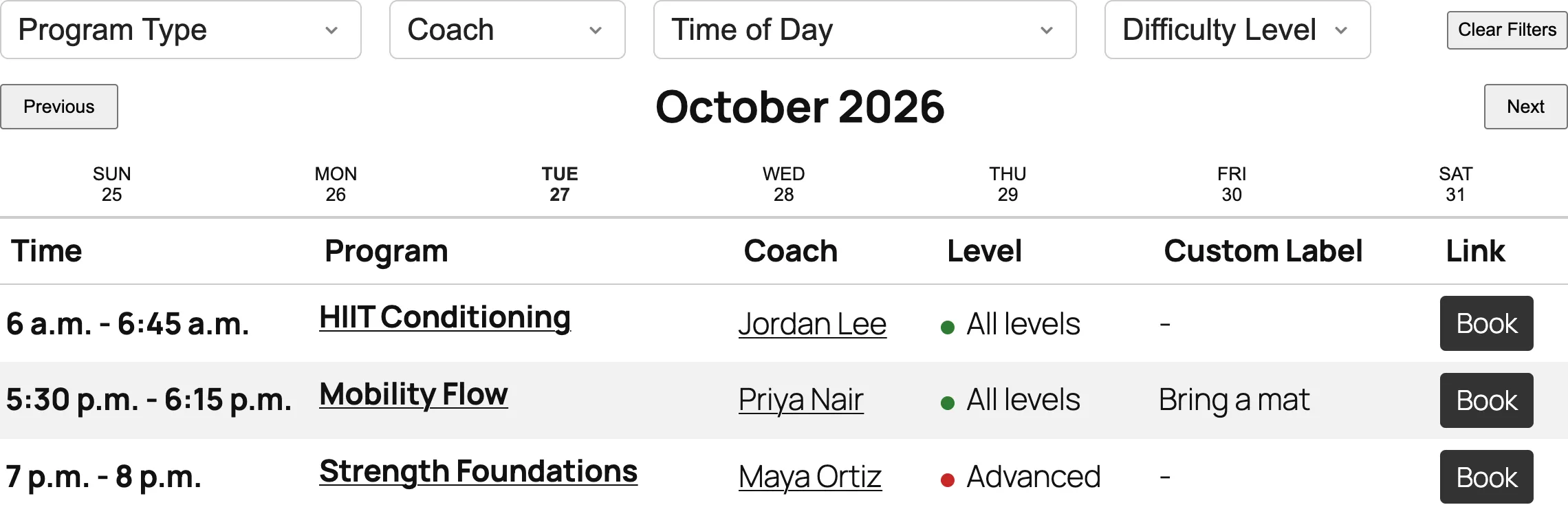 ## Before you start [Section titled “Before you start”](#before-you-start) * You need at least one **location** with sessions on its schedule. See [Build your class schedule](/get-started/schedule/). * The block shows **one** location. For several locations, add one block per location. ## Add the block to a page [Section titled “Add the block to a page”](#add-the-block-to-a-page) 1. Edit the page, click **+** (Block Inserter) and search for **Location Schedule**. It’s in the **GymMark** group. 2. In the block settings on the right, open the **General** tab. 3. Choose the **Location**. 4. Choose a **Display Style**: **Weekly View** (the default) or **Month View**. 5. Save the page and view it. The block doesn’t detect which location page it sits on. Choose the location yourself, even on that location’s own page. If you leave it empty, the block shows the first location. ## What visitors see [Section titled “What visitors see”](#what-visitors-see) ### Weekly View [Section titled “Weekly View”](#weekly-view) The week’s days run Sunday to Saturday as tabs. The page opens on today’s tab. **Previous** and **Next** move a week at a time. Each row shows the time, program, instructor, level, custom label and a booking button. Program and instructor names link to their pages. ### Month View [Section titled “Month View”](#month-view) A calendar of the whole month. Each session shows its time and program. With **Condense Month View Details** on (the default), visitors click a session to see the instructor, level, custom label and booking button. A key under the calendar explains the level colors. 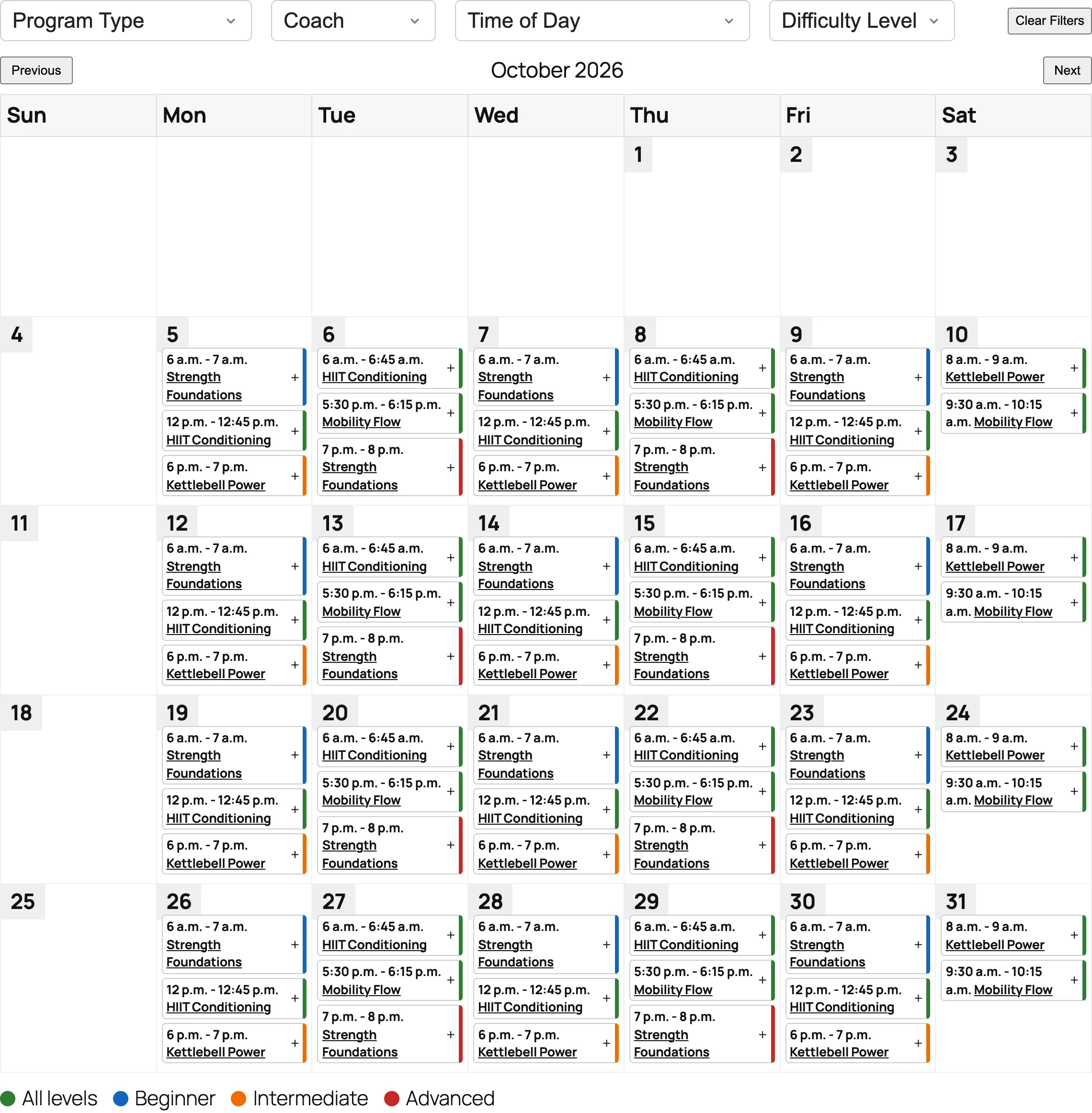 ### On phones [Section titled “On phones”](#on-phones) Weekly View stacks the filters and shrinks the table. **Month View switches to the weekly tabs on screens 767px wide or narrower**, because a month grid doesn’t fit. 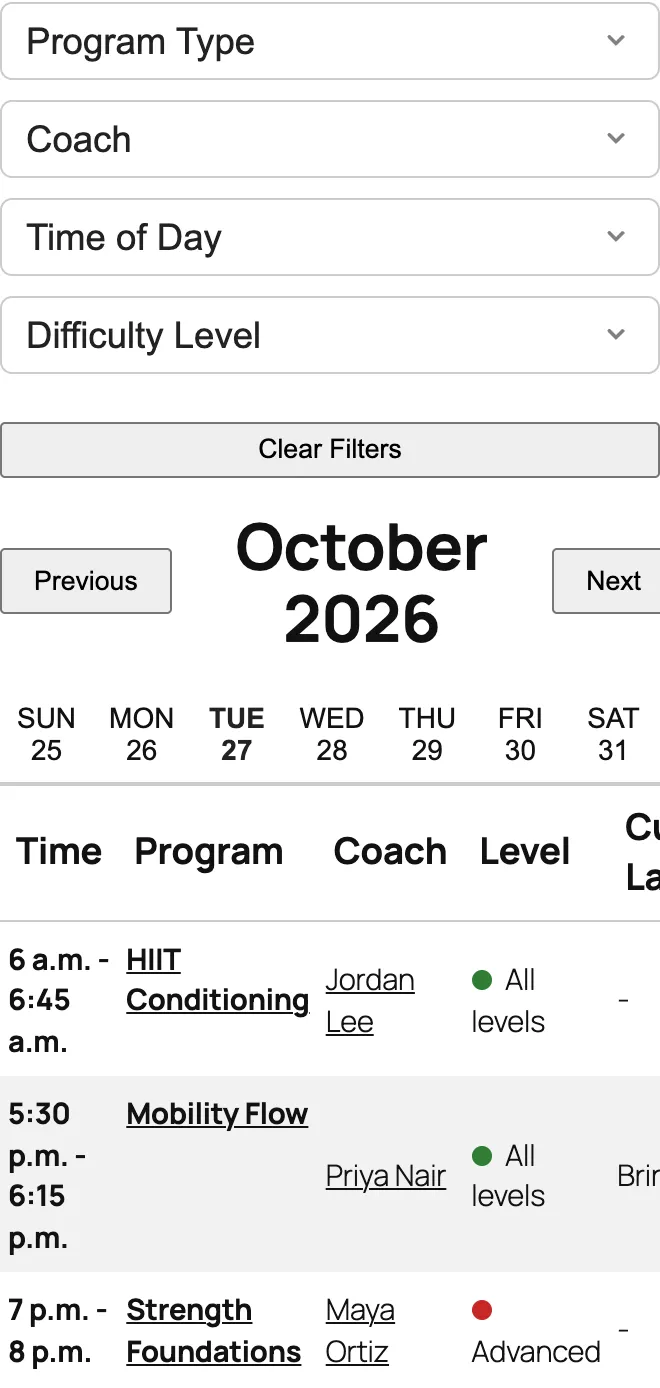 ### Dates and times [Section titled “Dates and times”](#dates-and-times) * Times appear exactly as entered on the schedule, such as “6 a.m. - 6:45 a.m.”. They aren’t converted between time zones. * “Today” is the date on the visitor’s own device. ## Settings [Section titled “Settings”](#settings) ### General tab: View Settings [Section titled “General tab: View Settings”](#general-tab-view-settings) 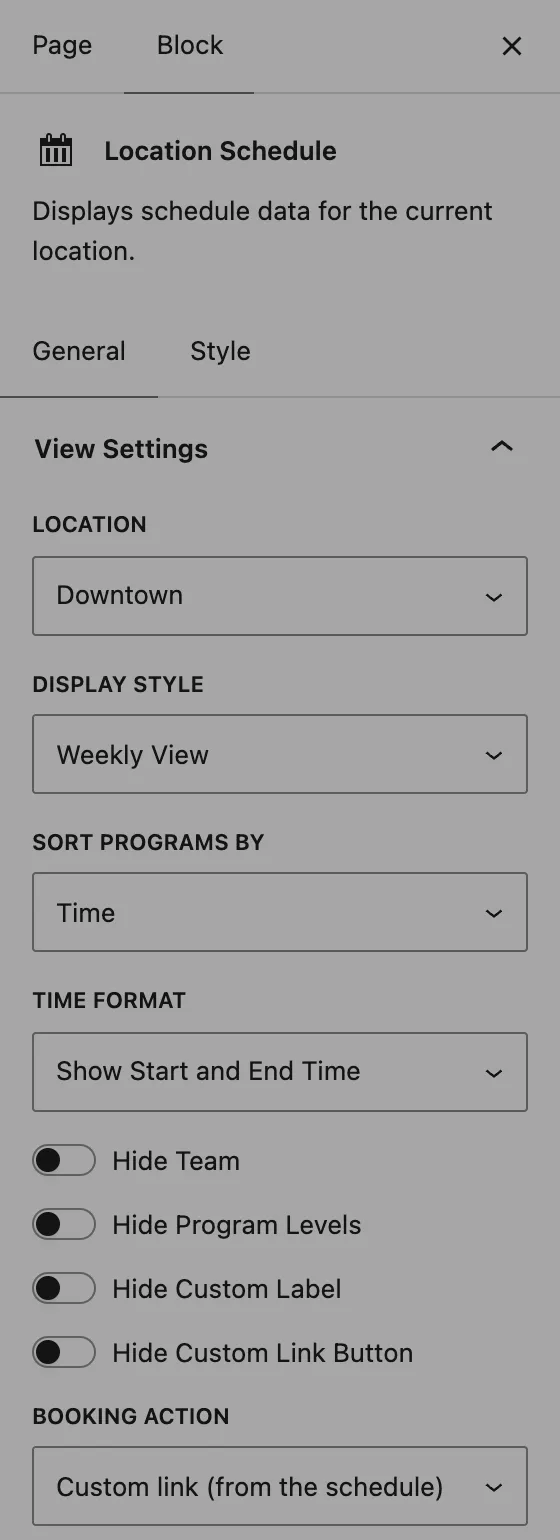 | Setting | What it does | | ------------------------------- | ----------------------------------------------------------------------------------------------------------------------------------------------------- | | **Location** | Which location’s schedule to show. Only top-level locations are listed; sub-locations don’t have schedules. | | **Display Style** | **Weekly View** (day tabs and a table) or **Month View** (a calendar). | | **Sort Programs By** | Order sessions within a day by **Time** (default), **Program** or **Instructor**. Sorting by program also draws a divider line between programs. | | **Time Format** | **Show Start and End Time** (default) or **Show Start Time Only**. | | **Hide Team** | Hides the instructor column and details, and keeps the instructor out of the booking form. | | **Hide Program Levels** | Hides the level column, level details and the level colors. | | **Hide Custom Label** | Hides the custom label column. You name this column in **Settings → Gymmark**, on the tab named after your programs (for example **Class Settings**). | | **Hide Custom Link Button** | Hides the booking link buttons. Only applies when **Booking action** is **Custom link**. | | **Booking action** | What the booking button does. See [Booking buttons](#booking-buttons). | | **Form** | Shown when **Booking action** is **Integrated booking form**. Choose a form, or leave **Use default form**. | | **Button label** | Shown with **Integrated booking form**. The button text and its column title, such as “Book”, “Request info” or “Try it free”. | | **Hide Program Details** | Hides the level, custom label and custom link button in one go. | | **Hide Program Links** | Shows program names as plain text instead of links. | | **Hide Instructor Links** | Shows instructor names as plain text instead of links. | | **Condense Month View Details** | On by default. In Month View, sessions show only time and program until clicked. | ### General tab: Filter Settings [Section titled “General tab: Filter Settings”](#general-tab-filter-settings) 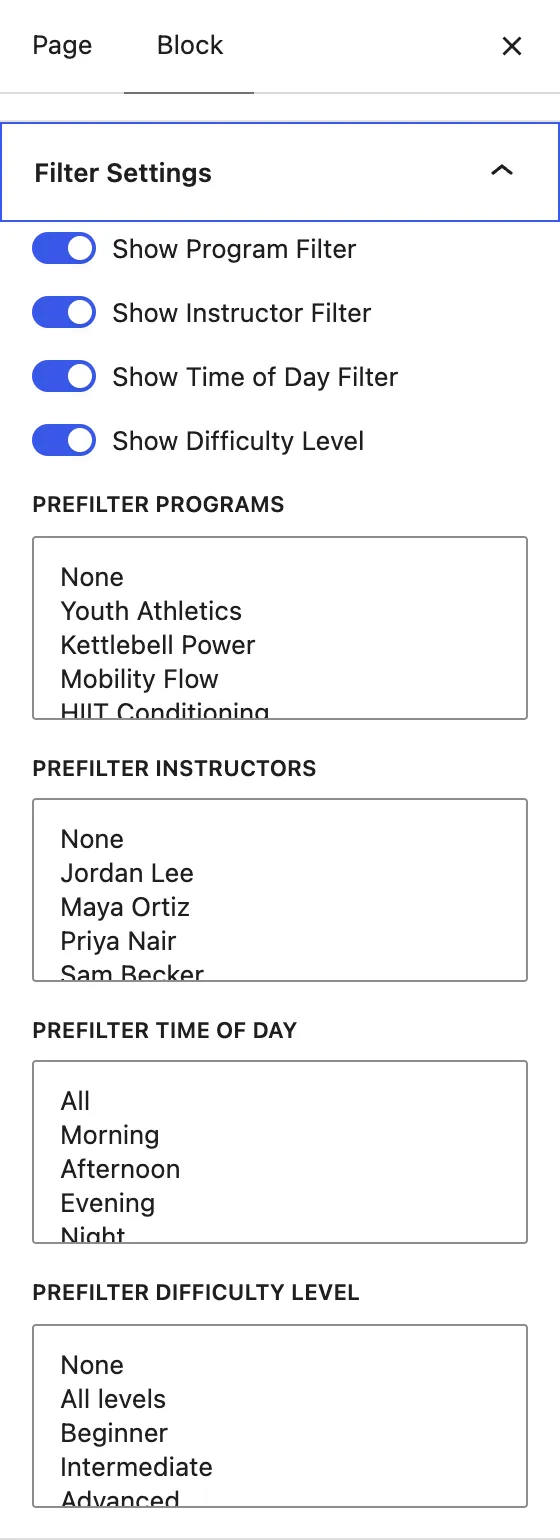 | Setting | What it does | | ------------------------------ | ------------------------------------------------------------------------------------------- | | **Show Program Filter** | A dropdown listing the programs on the visible week or month. | | **Show Instructor Filter** | A dropdown listing every instructor on the site. | | **Show Time of Day Filter** | Morning (5 AM–12 PM), Afternoon (12–5 PM), Evening (5–9 PM), Night (9 PM–5 AM). | | **Show Difficulty Level** | A dropdown of your levels. | | **Prefilter Programs** | Shows only the programs you pick. Hold Ctrl (Windows) or Cmd (Mac) to pick several. | | **Prefilter Instructors** | Shows only sessions taught by the instructors you pick. | | **Prefilter Time of Day** | Shows only sessions in the parts of the day you pick: Morning, Afternoon, Evening or Night. | | **Prefilter Difficulty Level** | Shows only sessions at the levels you pick. Appears when **Show Difficulty Level** is on. | Prefilters combine: **Prefilter Programs: HIIT Conditioning** with **Prefilter Time of Day: Morning** shows only morning HIIT. Leave a prefilter on **None** to show everything. Visitors’ filters then work within what the prefilters allow. The **Clear Filters** button on the page resets all four dropdowns. ### Style tab [Section titled “Style tab”](#style-tab) 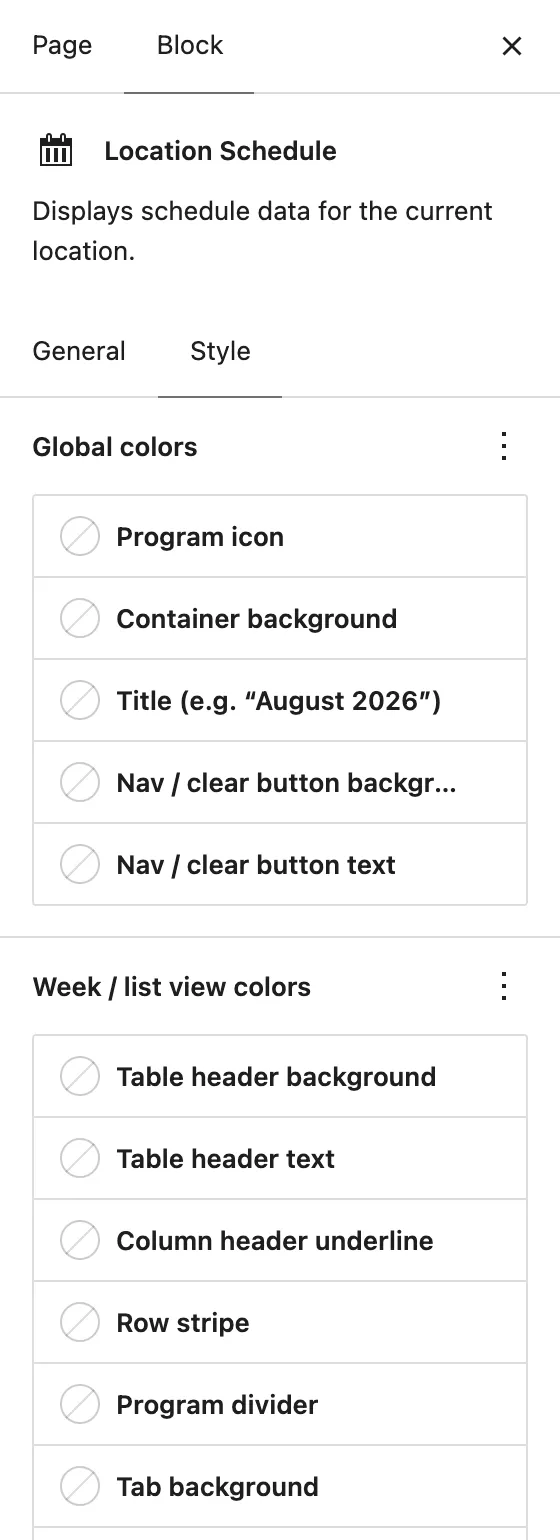 Every color is optional. Leave one empty to use your theme’s color. | Group | Settings | | --------------------------- | ----------------------------------------------------------------------------------------------------------------------------------------------- | | **Global colors** | Program icon, container background, title (the month name), nav and clear button background and text | | **Week / list view colors** | Table header background and text, column header underline, row stripe, program divider, tab background and text, active tab background and text | | **Month view colors** | Day cell background and border, weekday header background and text, date number background and text, event block background, border and text | | **Filter colors** | Filter background, border and focus outline | | **Layout & effects** | Container border radius, container shadow, filter dropdown radius, base font size (0 = theme default) | | **Reset** | **Reset all styling** clears every style setting | Program icons show in Weekly View only, so **Program icon** color has no effect in Month View. ## Booking buttons [Section titled “Booking buttons”](#booking-buttons) Choose what the button on each session does with **Booking action**: **Custom link (from the schedule)** (default) : Each session uses the **Link Text**, **Link URL** and **Link Class** entered on the schedule. Sessions without a link URL have no button. Links to other sites open in a new tab. Links starting with `#` stay on the page, so they can open a pop-up from your theme. **Integrated booking form** : Every session gets a button that opens GymMark’s booking pop-out, pre-filled with the program, time, location and instructor. While visitors can’t see GymMark forms yet, they get each session’s own link instead. That’s while [Forms mode](/guide/forms/forms-mode/) is **Off**, or in **Test mode** for visitors who aren’t logged in. Switching to **Live** turns on the form buttons for everyone. ## Common setups [Section titled “Common setups”](#common-setups) * **A page per location:** on each location’s page, add **Location Hours** and **Location Schedule**, and choose that location in both. * **One schedule page for a single-location gym:** add the block to a “Schedule” page and choose **Weekly View**. It’s the easiest to read on phones. * **Lead capture instead of booking:** set **Booking action** to **Integrated booking form** and **Button label** to something like “Try it free”. Test it in Test mode, then switch Forms mode to **Live**. * **A page for one program:** on a program’s page, set **Prefilter Programs** to that program to show only its sessions. * **Early-bird or kids’ schedules:** use **Prefilter Time of Day** (Morning) or **Prefilter Difficulty Level** to make focused schedules for landing pages. ## Limitations [Section titled “Limitations”](#limitations) * **The Location Selector block doesn’t control this block.** Choosing a location in the selector doesn’t change which schedule is shown. Set **Location** on each block. * **A prefilter doesn’t change the visitor’s dropdown.** With **Prefilter Time of Day: Morning**, the visitor dropdown still reads “Time of Day”. Consider turning off a filter you’ve prefiltered. * **The instructor filter lists every instructor on the site**, including ones not on this schedule. ## Related [Section titled “Related”](#related) * [Build your class schedule](/get-started/schedule/) * [Put GymMark on your pages](/get-started/pages/) * [Forms mode](/guide/forms/forms-mode/)
# Developers & AI
> Exact names and contracts for building on GymMark — for developers and AI agents.
These pages give exact names: option keys, post meta, hooks, REST routes and HTML contracts. Where the Help Center says “Forms → Settings → Forms mode”, these pages say `gymmark_forms_mode`. ## For AI agents [Section titled “For AI agents”](#for-ai-agents) * [`/llms.txt`](/llms.txt) lists every public page. * [`/llms-full.txt`](/llms-full.txt) is the whole public site as one Markdown file. * [`/llms-small.txt`](/llms-small.txt) is a condensed version. Every factual statement on these pages is listed in the GymMark claims registry with how and when it was verified. If you find a statement that doesn’t match the plugin’s behavior, treat the plugin as the source of truth and report the page. ## Reference [Section titled “Reference”](#reference) * [Booking-button contract](/developers/booking-button-contract/): the `data-gm-*` attributes that open the pop-out with a class pre-filled.
# Booking-button contract
> The HTML attributes that open GymMark's booking pop-out and pre-fill the class, program, location and form.
Any element with `data-gm-form="1"` opens the GymMark booking pop-out when clicked. Optional `data-gm-*` attributes pass context: which form to show, and which program, location and class session the visitor clicked. ## Attributes [Section titled “Attributes”](#attributes) | Attribute | Value | Effect | | --------------------- | -------------------------------- | ----------------------------------------------------------------------------------------------- | | `data-gm-form` | `1` | Required. Marks the element as a booking trigger. | | `data-gm-form-id` | `gym_form` post ID | Show this form instead of the resolved one. | | `data-gm-offer-id` | `gym_offer` post ID | Show this offer in the pop-out. | | `data-gm-program-id` | Program (`classes`) post ID | Context for form, offer and review matching. | | `data-gm-location-id` | `locations` post ID | Context for form, offer and review matching. | | `data-gm-program` | Program name | Pre-selects the program field; part of the selected session. | | `data-gm-day` | Display text, e.g. `Fri, Oct 16` | Part of the selected session. | | `data-gm-time` | Display text, e.g. `6 a.m.` | Part of the selected session. | | `data-gm-coach` | Instructor name | Part of the selected session. | | `data-gm-hide-coach` | `1` | The source hid instructors: the selected session and its **Change** picker leave the coach out. | The day, time, program and coach values fill the form’s **Selected session** field (when the form has one) and are submitted with the lead. ## Generating a trigger in PHP [Section titled “Generating a trigger in PHP”](#generating-a-trigger-in-php)
```php
echo gymmark_form_trigger_button(
'Book a free class', // label (defaults to "Get started")
array(
'program_id' => 123,
'location_id' => 456,
'program' => 'Barre',
'day' => 'Fri, Oct 16',
'time' => '6 a.m.',
'coach' => 'Jane Coach',
),
'my-extra-class' // optional extra CSS class
);
```
It outputs an `` link. Empty values are left out. The context keys are `program_id`, `location_id`, `form_id`, `offer_id`, `program`, `day`, `time`, `coach` and `hide_coach`. ## Generic triggers [Section titled “Generic triggers”](#generic-triggers) When **Button takeover** is on (option `gymmark_forms_generic_triggers`, default on), these also open the pop-out: `a[href$="#start"]`, `a[href$="#book"]`, `.start` and `.book`. They carry no context unless you add `data-gm-*` attributes. When it’s off, only `[data-gm-form="1"]` opens the pop-out. Triggers do nothing for visitors who can’t see forms; see [Forms mode](/guide/forms/forms-mode/) (option `gymmark_forms_mode`: `off`, `admins`, `live`).
# What GymMark adds to your site
> A tour of GymMark's parts and where to find their settings in WordPress.
GymMark is a WordPress plugin for gyms and studios. It adds the content types, blocks and settings a gym website needs, and keeps them connected: a class on your schedule knows its program, its instructor and its location, and the booking form that opens from it knows all three. ## The parts [Section titled “The parts”](#the-parts) | Part | What it’s for | Where to find it in WordPress | | -------------------- | --------------------------------------------------------------------------------------------------- | ------------------------------------------------------------------------------------------------------------------- | | **Locations** | Each gym or studio, with address, hours and its class schedule. | **Locations** menu | | **Programs** | The classes you offer. | **Classes** menu on a new install. Rename it (for example to “Programs”) in **Settings → Gymmark → Configuration**. | | **Instructors** | Coaches, linked to the classes they teach. | **Instructors** menu (also renameable in **Settings → Gymmark → Configuration**) | | **Events** | One-off and recurring events. | **Events** menu | | **Reviews** | Google reviews, imported and kept in sync, which you can tag and show in blocks. | **Reviews** menu, and **Settings → Gymmark → Reviews** | | **Forms and offers** | Booking and enquiry forms, a pop-out that shows a matching review and offer, and where leads go. | **Forms** menu | | **Blocks** | Schedules, class and instructor cards, review carousels, location finder, booking buttons and more. | In the block editor, under the **GymMark** category | ## The setup path [Section titled “The setup path”](#the-setup-path) Work through these in order. Each step takes 5–20 minutes, and you can stop between steps. 1. [Install GymMark and add your license](/get-started/install/) 2. [Add your first location](/get-started/first-location/) 3. [Add programs and instructors](/get-started/programs-and-instructors/) 4. [Build your class schedule](/get-started/schedule/) 5. [Put GymMark on your pages](/get-started/pages/) 6. [Turn on booking forms](/get-started/booking-forms/) 7. [Launch checklist](/get-started/launch-checklist/) ## Where the settings are [Section titled “Where the settings are”](#where-the-settings-are) * **Settings → Gymmark** holds your license key, what you call Programs and Instructors, levels, events, the Google reviews connection and search (schema) settings. * **Forms → Settings** controls whether booking forms are switched on for visitors. Read [Forms mode](/guide/forms/forms-mode/) before turning forms on for an existing site.
# Turn on booking forms
> Build your first form, test it privately, connect where leads go, then switch it on for visitors.
GymMark’s booking forms open in a pop-out with a matching review and offer beside the form. When someone clicks **Book** on a session, the form already knows the program, time, location and instructor. This step gets one form working, tested and live. Already collecting leads another way, such as Forminator and Zapier? Nothing changes for visitors until you switch Forms mode to **Live**. You can build and test everything first. ## 1. Switch to Test mode [Section titled “1. Switch to Test mode”](#1-switch-to-test-mode) 1. Go to **Forms → Settings**. 2. Under **Forms mode**, set **Who sees GymMark forms** to **Test mode** and click **Save Settings**. In Test mode, only logged-in staff who can edit posts see GymMark forms. Everyone else sees your site exactly as before. Details: [Forms mode](/guide/forms/forms-mode/). ## 2. Build a form [Section titled “2. Build a form”](#2-build-a-form) 1. Go to **Forms → Add New Form**. The form editor opens full-screen. 2. In **Form Fields**, add the fields you need, such as name, email, phone and a **Consent** field. 3. Check the other tabs: **Appearance**, **Behavior** (submit button text, where to send people after they submit), **Email Notifications**, **Integrations** and **Settings**. 4. Click **Publish**. ## 3. Decide where leads go [Section titled “3. Decide where leads go”](#3-decide-where-leads-go) Every lead is saved in WordPress. Also send it somewhere your team will see it: * **Email:** add addresses under **Forms → Settings → Lead notifications → Notification emails**, or on the form’s **Email Notifications** tab. If both are empty, **no email is sent**. GymMark doesn’t fall back to the site admin’s email. * **HighLevel:** connect it directly. See [Connect HighLevel](/integrations/highlevel/). * **Zapier, Make or similar:** paste a webhook URL in **Forms → Settings → Routing**. ## 4. Make it the default [Section titled “4. Make it the default”](#4-make-it-the-default) In **Forms → Settings → Defaults**, set **Default form** to your new form and click **Save Settings**. Every booking button without a form of its own uses it. ## 5. Point booking buttons at the form [Section titled “5. Point booking buttons at the form”](#5-point-booking-buttons-at-the-form) * **Schedules:** in each **Location Schedule** block, set **Booking action** to **Integrated booking form**. Optionally set a **Button label**, such as “Try it free”. * **Anywhere else:** add a **Booking Button** block, or link any button to `#start`. With **Button takeover** on (the default, in **Forms → Settings**), links to `#start` or `#book` open the pop-out. ## 6. Test it [Section titled “6. Test it”](#6-test-it) Logged in, click a booking button on a schedule. Check that: * the pop-out opens, with the session’s program, time and location filled in * submitting shows the success message or redirects where you set * the lead reaches every destination: email, HighLevel or webhook Then open the site in a private window. You **shouldn’t** see any GymMark pop-out there yet. ## 7. Go live [Section titled “7. Go live”](#7-go-live) 1. **Forms → Settings → Who sees GymMark forms → Live**, then **Save Settings**. 2. Clear your site’s page cache, so visitors get the pop-out. 3. Submit one more test lead from a private window. **Next:** [Launch checklist](/get-started/launch-checklist/)
# Add your first location
> Create a location with its address, opening hours and map position.
A **location** is one gym or studio. It holds the address, opening hours, map position and the class schedule. Every block that shows hours, a schedule or a map reads it from a location. ## 1. Create the location [Section titled “1. Create the location”](#1-create-the-location) 1. Go to **Locations → Add New Location**. 2. Type the location’s name as the title, for example “Downtown”. 3. Click **Save** (or **Publish**) once, so WordPress shows all of GymMark’s boxes. GymMark’s boxes sit below the page content. On recent WordPress versions they’re folded into a bar labelled **Meta Boxes** at the bottom of the editor; click it to open them. ## 2. Address and phone [Section titled “2. Address and phone”](#2-address-and-phone) Fill in the **Location Address** box: **Address**, **City**, **State/Province/Region**, **Postal Code**, **Country** and **Phone**. 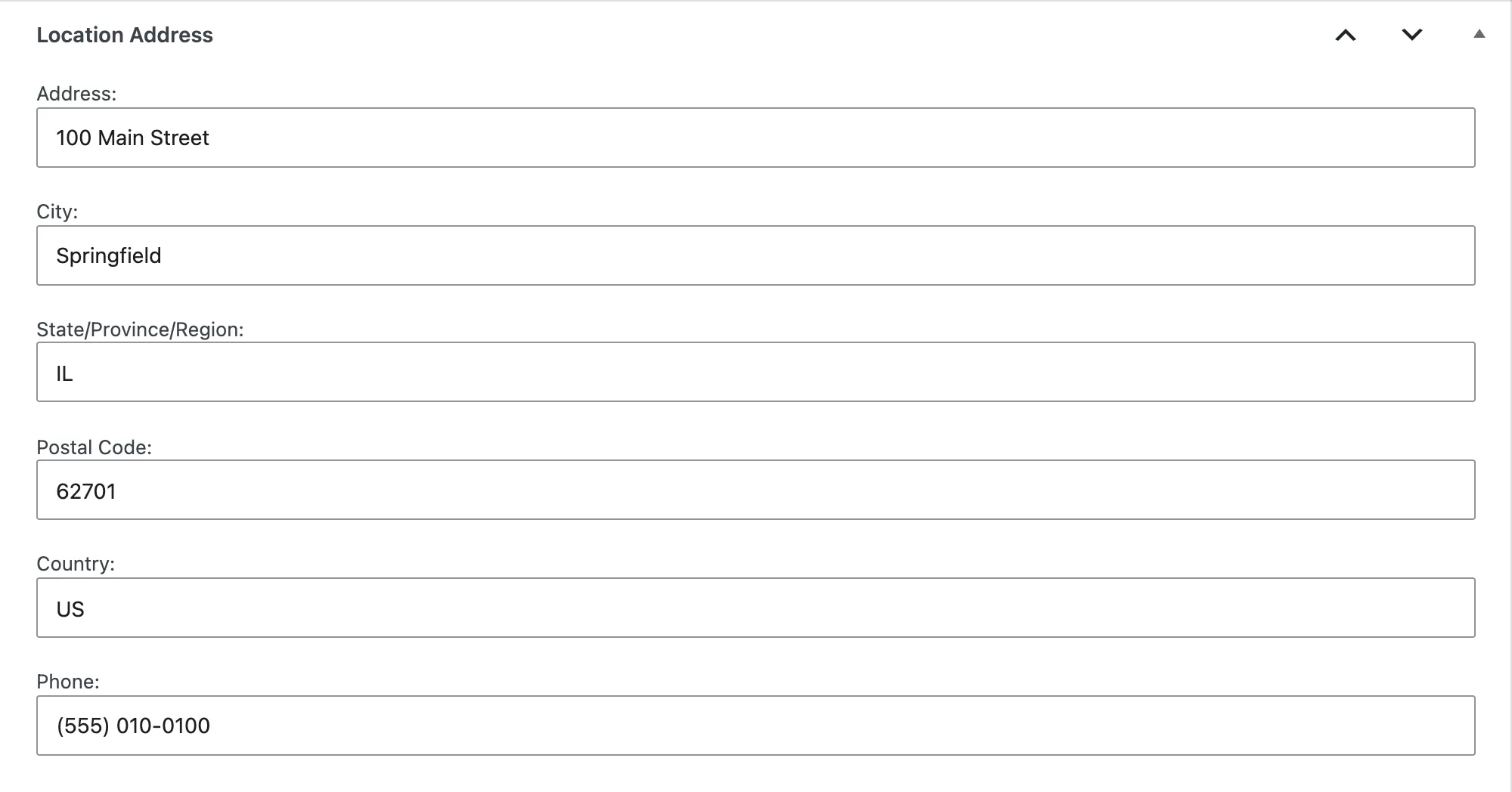 ## 3. Opening hours [Section titled “3. Opening hours”](#3-opening-hours) In **Location Hours**, set **Open** and **Close** for each day. Tick **Closed** for days you’re closed. That greys out the times. 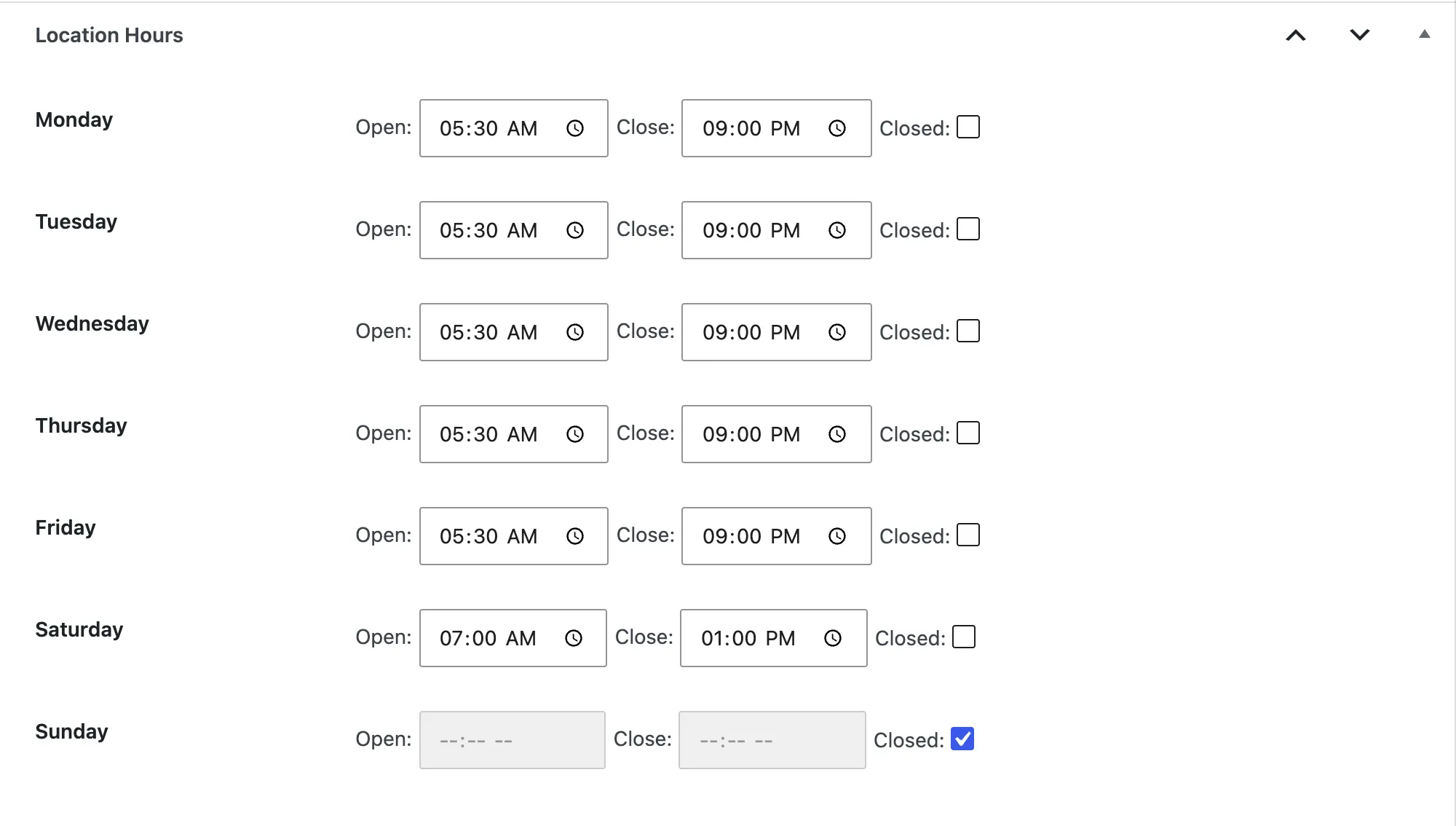 ## 4. Map position [Section titled “4. Map position”](#4-map-position) In **Location Coordinates**, click **Calculate Coordinates from Address**. It needs a Google Maps API key in **Settings → Gymmark → Configuration**. If it works you’ll see **Coordinates updated! Remember to save the post.** No key? Type the **Latitude** and **Longitude** yourself. Find them by right-clicking the building in Google Maps. 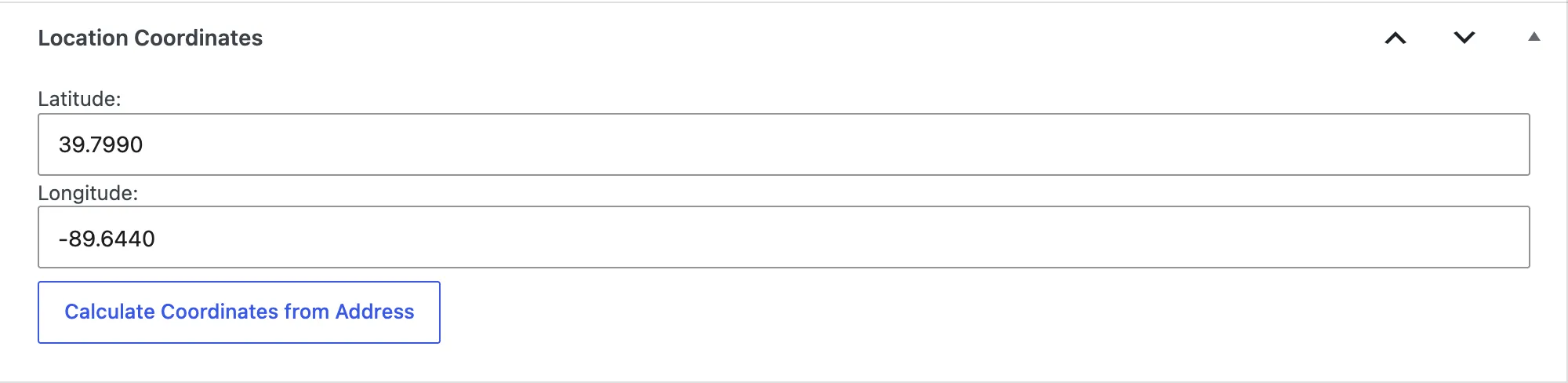 Click **Save**. ## Sub-locations [Section titled “Sub-locations”](#sub-locations) A location can have a **Parent** (in the settings panel on the right). Use this for a studio inside a bigger gym, or a neighborhood page for SEO. Sub-locations are simpler than top-level locations: * They have **no schedule, address, hours or map position** of their own. Only the **Review Property** box appears. * Blocks don’t list sub-locations; booking forms treat them as their parent. Most gyms only need top-level locations. ## About the location’s page [Section titled “About the location’s page”](#about-the-locations-page) GymMark doesn’t add anything to the location’s public page by itself. You choose what appears there with blocks, such as **Location Hours** and **Location Schedule**. That’s step 5, [Put GymMark on your pages](/get-started/pages/). ## Check it worked [Section titled “Check it worked”](#check-it-worked) **Locations** lists your location. Opening it shows the address, hours and coordinates you entered. **Next:** [Add programs and instructors](/get-started/programs-and-instructors/)
# Install GymMark and add your license
> Upload the plugin, activate it and turn on automatic updates with your license key.
Install the plugin, add your license key so you get updates, and choose what your site calls programs and instructors. ## Before you start [Section titled “Before you start”](#before-you-start) * You need to be a WordPress **administrator** on the site. * You need the GymMark plugin `.zip` file and your license key. Both come from GymMark. * Running a multisite network? Each site has its own GymMark settings. Install once for the network and set up each site separately. ## 1. Install the plugin [Section titled “1. Install the plugin”](#1-install-the-plugin) 1. In WordPress, go to **Plugins** and open the **Add Plugins** screen. 2. Click **Upload Plugin**, choose the GymMark `.zip` file and click **Install Now**. 3. Click **Activate**. The plugin appears in your plugin list as **GymMark Extension**. You’ll now see new menus: **Locations**, **Classes**, **Instructors**, **Events**, **Reviews**, **Offers** and **Forms**, plus **Settings → Gymmark**. ## 2. Add your license key [Section titled “2. Add your license key”](#2-add-your-license-key) 1. Go to **Settings → Gymmark**. The **Configuration** tab opens. 2. Paste your key into **License Key**. 3. Click **Save Changes** at the bottom of the page. 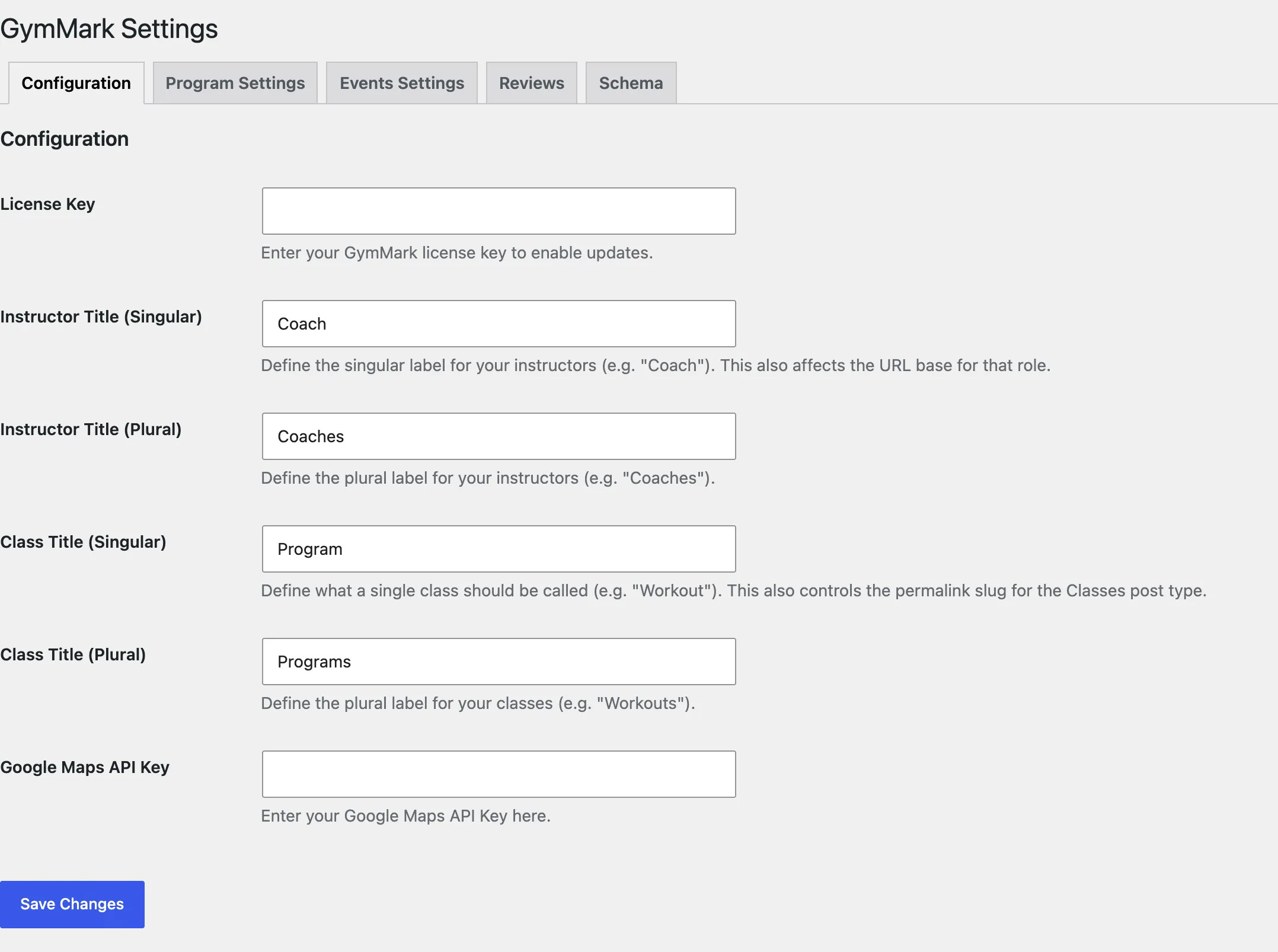 You should see **License activated successfully. Automatic updates are enabled.** A valid license does two things: * GymMark updates appear in **Dashboard → Updates**, like any other plugin. * It unlocks the Google reviews connection on the **Reviews** tab. If you see **License activation failed**, check the key for extra spaces and save again. If it still fails, contact GymMark support with the message shown. ## 3. Choose what to call programs and instructors [Section titled “3. Choose what to call programs and instructors”](#3-choose-what-to-call-programs-and-instructors) On the same **Configuration** tab: | Setting | What it’s for | Default | | ------------------------------- | -------------------------------------------------------------------------------------------------------------------- | ----------- | | **Instructor Title (Singular)** | One instructor, such as “Coach”. It’s also the start of instructor page addresses, for example `/coach/maya-ortiz/`. | Instructor | | **Instructor Title (Plural)** | The menu name, such as “Coaches”. | Instructors | | **Class Title (Singular)** | One class, such as “Program” or “Workout”. | Class | | **Class Title (Plural)** | The menu name, and the start of program page addresses, for example `/programs/hiit/`. | Classes | These names appear in menus, the schedule editor, block settings and on your site. The rest of these docs say **Programs** and **Instructors**. Click **Save Changes**. If program or instructor pages then show “not found”, go to **Settings → Permalinks** and click **Save Changes** once. That refreshes WordPress’s page addresses. ## 4. Add your Google Maps API key (optional) [Section titled “4. Add your Google Maps API key (optional)”](#4-add-your-google-maps-api-key-optional) **Google Maps API Key** on the same tab is used to look up each location’s map position from its address, and by the **Location Finder** block’s map. You can skip it and type the coordinates in yourself. ## Check it worked [Section titled “Check it worked”](#check-it-worked) * **Settings → Gymmark** shows no red license warning at the top of admin pages. * The admin menu shows your names, for example **Programs** and **Coaches**. **Next:** [Add your first location](/get-started/first-location/)
# Launch checklist
> Everything to check before a GymMark site goes live.
Go through this list on the live site, logged out where it says so. Each item links to where you fix it. ## Settings [Section titled “Settings”](#settings) * [ ] **License active:** no license warning at the top of admin pages. ([Install](/get-started/install/)) * [ ] **GymMark 2.3.3 or newer** (**Plugins** screen). Earlier versions have schedule bugs these docs don’t cover. * [ ] **Names:** the admin menus use the names you want, such as Programs and Coaches. ([Install](/get-started/install/#3-choose-what-to-call-programs-and-instructors)) ## Locations [Section titled “Locations”](#locations) * [ ] Every location has its address, phone, hours and map position. ([Add a location](/get-started/first-location/)) * [ ] Holiday hours or closures are reflected in the hours. ## Schedules [Section titled “Schedules”](#schedules) * [ ] This week and next week show the right sessions, times and instructors. Check on the public page, not just the calendar. * [ ] Every **Location Schedule** block has the right **Location** chosen. Blocks don’t detect the page’s location. ([Location Schedule block](/blocks/location-schedule/)) * [ ] Holidays are canceled on the schedule (**Cancel Program → Cancel Only This Program**). ([Build the schedule](/get-started/schedule/#cancel-one-session)) * [ ] Checked on a phone. ## Reviews [Section titled “Reviews”](#reviews) * [ ] Google reviews are connected and synced, with a recent **Last Sync** time in **Settings → Gymmark → Reviews**. * [ ] Each location’s **Review Property** is set, so its rating is its own. * [ ] Any review you don’t want shown is hidden. ## Booking forms [Section titled “Booking forms”](#booking-forms) * [ ] A test lead from a **private window** reached every destination: email, CRM or webhook. * [ ] **Notification emails** are set. Without them, no one is emailed. * [ ] **Forms mode** is **Live** and the page cache was cleared afterwards. ([Forms mode](/guide/forms/forms-mode/)) * [ ] The old lead form (such as Forminator) is removed or redirected, so leads don’t arrive twice. ## Search [Section titled “Search”](#search) * [ ] Run a location page through Google’s [Rich Results Test](https://search.google.com/test/rich-results). It should find a local business with your address.
# Put GymMark on your pages
> Choose which GymMark blocks go on your home, location, schedule, program and team pages.
GymMark doesn’t change your pages by itself. You decide what appears where by adding **blocks** in the WordPress editor. All of them are in the **GymMark** group of the Block Inserter (**+**). ## A page plan that works for most gyms [Section titled “A page plan that works for most gyms”](#a-page-plan-that-works-for-most-gyms) | Page | Blocks to add | Why | | ----------------------------------- | ---------------------------------------------------------------------- | ------------------------------------------------------------------ | | **Each location’s page** | **Location Hours**, **Location Schedule** | Visitors check hours and times for the gym they’ll actually go to. | | **Schedule** (single-location gyms) | **Location Schedule** in **Weekly View** | The easiest schedule to read on a phone. | | **Locations** (multi-location gyms) | **Location Finder** | A searchable map of your gyms. Needs a Google Maps API key. | | **Programs** | **Classes** | All your programs as cards, with each one’s next sessions. | | **Each program’s page** | **Class Card** | The program’s upcoming sessions at a chosen location. | | **Team / Coaches** | **Instructor Card**, one per instructor | Photo, role, bio and the classes they teach. | | **Home** | **Review Badges**, **Google Reviews**, **Booking Button** or **Offer** | Social proof plus one clear next step. | | **Events** | **Event Schedule** | Workshops, open days and other one-off events. | ## Set the location on every block [Section titled “Set the location on every block”](#set-the-location-on-every-block) Blocks don’t detect which location page they’re on. On each location page, open the block’s settings (the right-hand panel) and choose that location, in **Location Hours** and in **Location Schedule**. If you leave it empty, the block shows your first location. ## Example: a location page [Section titled “Example: a location page”](#example-a-location-page) 1. Go to **Locations** and open the location. 2. Click **+**, search for **Location Hours**, add it and choose the location under **Select Location**. 3. Add **Location Schedule**. In **View Settings**, choose the **Location** and a **Display Style**. See the [Location Schedule block](/blocks/location-schedule/) for every setting. 4. Click **Save** and view the page. ## Booking buttons for now [Section titled “Booking buttons for now”](#booking-buttons-for-now) Schedule blocks start with **Booking action: Custom link (from the schedule)**, using the links you entered on each session. You can switch them to GymMark’s booking form in the next step. ## Check it worked [Section titled “Check it worked”](#check-it-worked) View each page logged out, or in a private browser window, on a computer and on a phone. You should see this week’s sessions, today’s hours and your branding colors. **Next:** [Turn on booking forms](/get-started/booking-forms/)
# Add programs and instructors
> Set up your levels, then the programs you teach and the instructors who teach them.
Your schedule is built from three lists: **levels**, **programs** and **instructors**. Set them up first, because the schedule editor only lets you pick from what exists. ## 1. Add levels (do this first) [Section titled “1. Add levels (do this first)”](#1-add-levels-do-this-first) Levels, such as “Beginner” or “All levels”, show on the schedule with a colored dot. Caution Add at least one level before building a schedule. Every session needs a level, and the schedule editor can’t save a session until one exists. 1. Go to **Settings → Gymmark** and open the tab named after your programs. It’s **Class Settings** on a new install. 2. Under **Class Levels**, click **Add Class Level**. Both are named after your programs, for example **Program Levels** and **Add Program Level**. 3. Type a **Name** and pick a **Color**. Add as many as you need. 4. Click **Save Changes**. 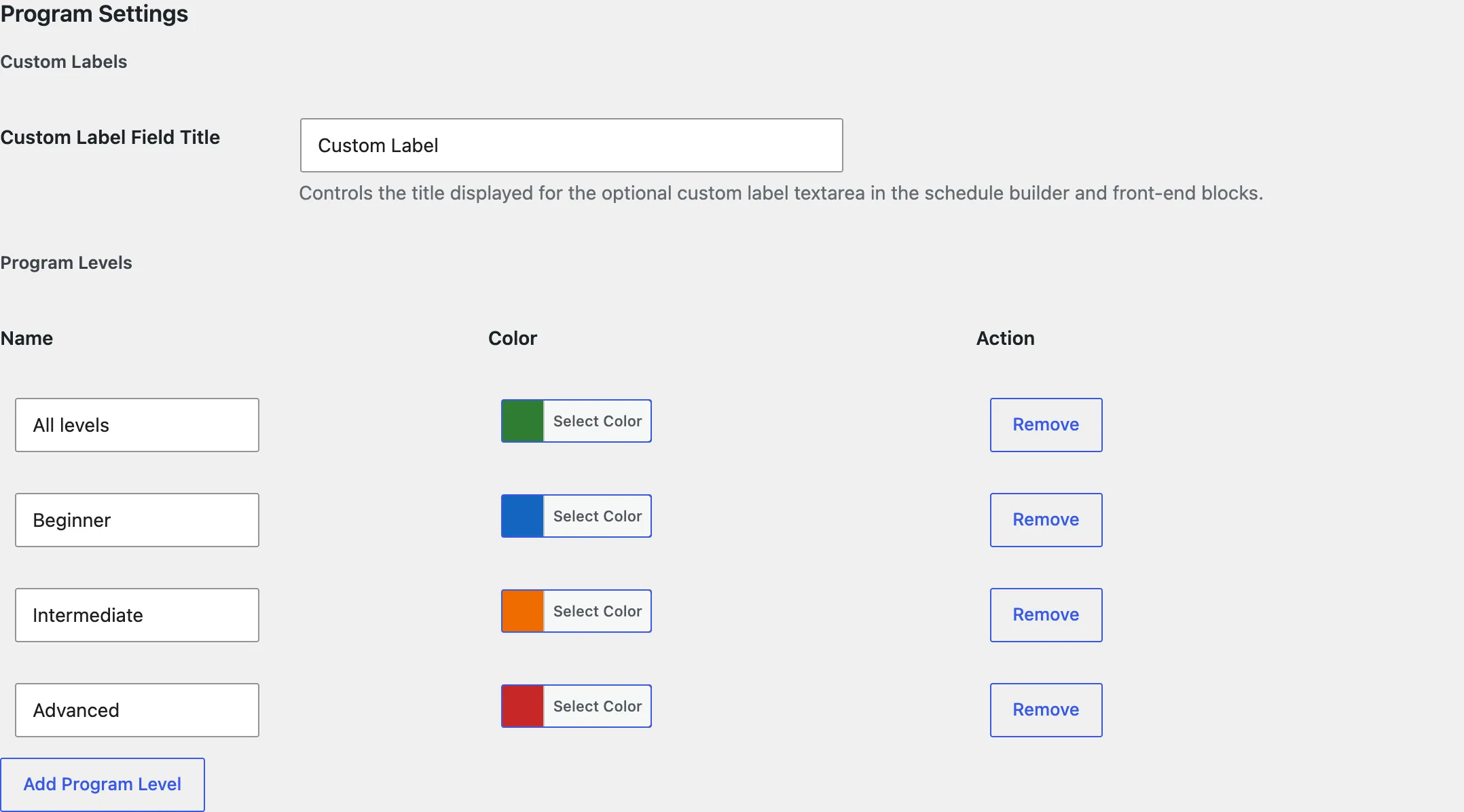 On the same tab, **Custom Label Field Title** names an optional extra column on your schedule, such as “Bring” or “Room”. ## 2. Add programs [Section titled “2. Add programs”](#2-add-programs) 1. Go to **Classes → Add New Class**. If you renamed programs, it’s named to match, for example **Programs → Add New Program**. 2. Type the program’s name as the title, for example “HIIT Conditioning”. 3. Write a description in the page content. Add a short summary in **Excerpt**. 4. Set a **Featured image**. The **Classes** block shows it on program cards. 5. Optional: in the **Class Icon** box, click **Upload Icon** and choose an SVG icon. It shows next to the program on the weekly schedule. Uploading SVGs needs an administrator (on multisite, a network super admin). 6. Click **Publish**. Program names connect to the schedule The schedule remembers programs by **name**. If you rename a program after scheduling it, sessions keep the old name and lose the link to the program’s page. Rename programs before you build the schedule, or update the sessions afterwards. ## 3. Add instructors [Section titled “3. Add instructors”](#3-add-instructors) 1. Go to **Instructors → Add New Instructor**, or your name for it, such as **Coaches → Add New Coach**. 2. Type the instructor’s name as the title. 3. Write their bio in the page content. Add a featured image as their photo. 4. In **Instructor Details**, enter a **Role / Title**, such as “Head Coach”. The **Instructor Card** block can show it under their name. 5. Click **Publish**. ## Check it worked [Section titled “Check it worked”](#check-it-worked) * Your levels appear on the settings tab after saving. * **Programs** and **Instructors** list what you added. **Next:** [Build your class schedule](/get-started/schedule/)
# Build your class schedule
> Add recurring sessions to a location's schedule, and change or remove them later.
Each location has its own schedule. You add a session once, say “HIIT Conditioning, Mondays 6–6:45 a.m.”, and set it to repeat. The **Location Schedule** block then shows it on every matching day. ## Before you start [Section titled “Before you start”](#before-you-start) * You have a location ([step 2](/get-started/first-location/)). * You have at least one **level**, plus the programs and instructors you’ll schedule ([step 3](/get-started/programs-and-instructors/)). The editor can’t save a session without a level. ## 1. Open the schedule [Section titled “1. Open the schedule”](#1-open-the-schedule) 1. Go to **Locations** and open the location. 2. Open the **Meta Boxes** bar at the bottom of the editor, if it’s folded. 3. Find the box named after your programs, such as **Class Schedules** or **Program Schedules**. It’s a month calendar. 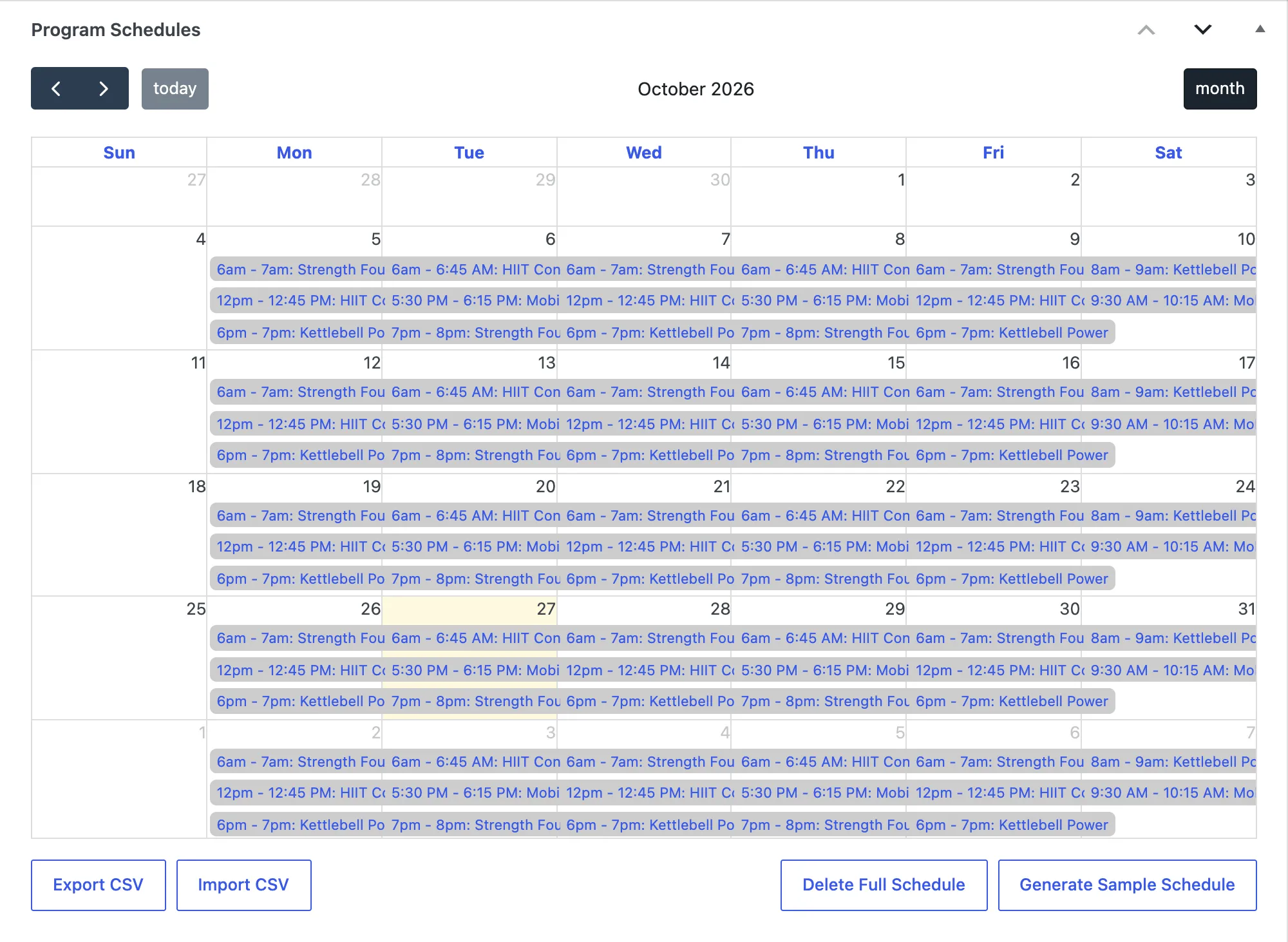 Only top-level locations have a schedule. Sub-locations don’t. ## 2. Add a session [Section titled “2. Add a session”](#2-add-a-session) 1. Click the date of the **first** session. For a weekly Monday class, click a Monday. 2. Fill in the window that opens: 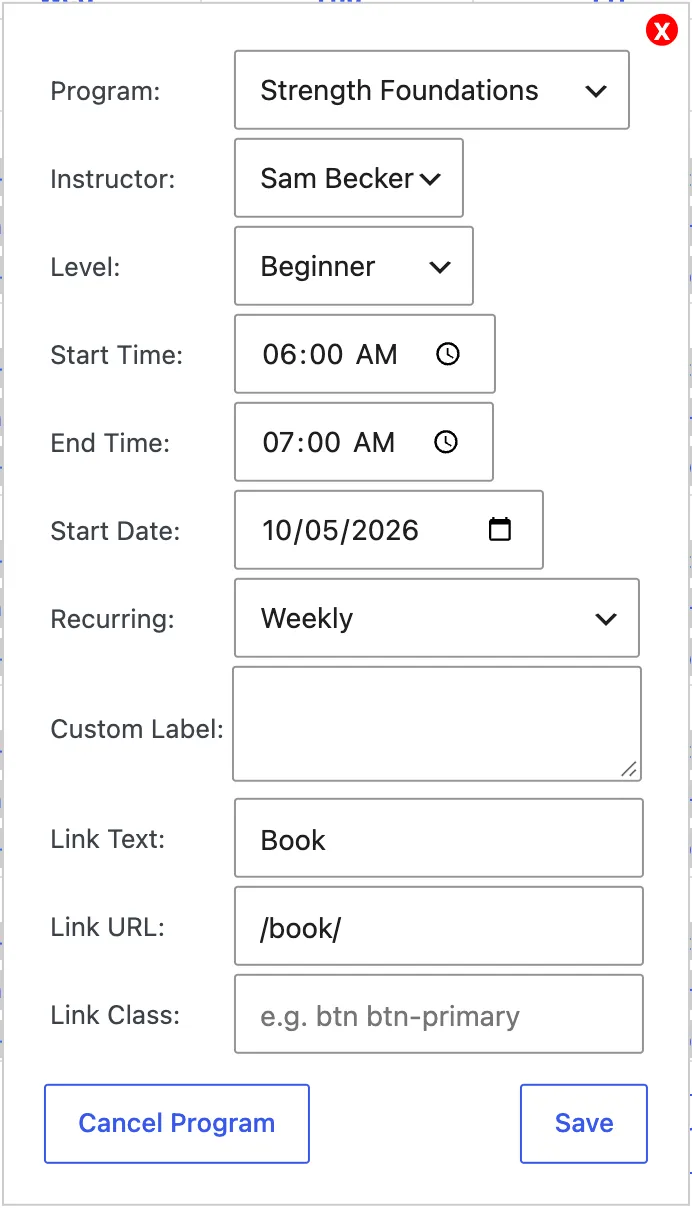 | Field | What to enter | | --------------------------------------------- | -------------------------------------------------------------------------------------------------------------------------------------------------------------------------------------------------------------------------------- | | **Program** | Pick a program, or **Other (Custom Program)** for a one-off name that isn’t a program. | | **Instructor** | Who teaches it, or **None**. | | **Level** | The level it’s for. | | **Start Time** / **End Time** | When it runs. | | **Start Date** | The first date it happens. Filled in from the date you clicked. | | **Recurring** | **One-Time**, **Weekly**, **Biweekly** (every two weeks), **Monthly (Same Date)** (for example the 5th of each month) or **Monthly (Same Weekday)** (for example the first Monday of each month). | | **Custom Label** | Optional extra info shown in its own column, such as “Bring a mat”. The field takes the name you gave it in settings. | | **Link Text** / **Link URL** / **Link Class** | Optional booking link for this session, such as “Book” and `https://yourbookingsystem.com/...`. A URL starting with `#` stays on the page. **Link Class** adds a CSS class, for example one that opens a pop-up from your theme. | 3. Click **Save**. The session saves straight away, so you don’t need to update the location afterwards. Repeat for each session. A typical gym schedule has 10–30 sessions per location. ## 3. Change a session [Section titled “3. Change a session”](#3-change-a-session) Click the session on the calendar, change any field and click **Save**. The change applies to the whole series: every date that session repeats on. ## Cancel one session [Section titled “Cancel one session”](#cancel-one-session) To skip one date, such as a holiday: 1. Click that date’s session on the calendar. 2. Click **Cancel Program** (named after your programs), then **Cancel Only This Program**. The session stays on the calendar marked **Canceled**, and visitors no longer see it on that date. Changed your mind? Click it and choose **Add Back to Schedule**. ## End or remove a series [Section titled “End or remove a series”](#end-or-remove-a-series) Click a session in the series, then **Cancel Program** and one of: * **Cancel All Programs After This:** the series stops after this date. Use it when a program ends, for example after December. * **Delete All Programs In Series:** removes the series completely, past and future. ## Other buttons under the calendar [Section titled “Other buttons under the calendar”](#other-buttons-under-the-calendar) | Button | What it does | | ---------------------------- | ------------------------------------------------------------------------------------------------------------------------------------------------------------------------------------------------------------------- | | **Export CSV** | Downloads the schedule as a spreadsheet file. | | **Import CSV** | Replaces the **whole** schedule with a CSV file. Export first and edit that file. Sessions using a custom program name, and custom labels with line breaks, don’t survive the round trip, so check them afterwards. | | **Delete Full Schedule** | Removes every session at this location. This can’t be undone, so export first. | | **Generate Sample Schedule** | Replaces the schedule with a sample week. | The CSV columns are `class`, `instructor`, `level`, `start_date`, `start`, `end`, `recurring`, `custom_label`, `link_text`, `link_url`, `link_class`, `hidden_dates` and `hide_after_date`. Instructors are stored by their ID number, times as 24-hour `HH:MM` and dates as `YYYY-MM-DD`. ## Check it worked [Section titled “Check it worked”](#check-it-worked) Sessions appear on the calendar on every date they repeat. To see them the way visitors will, add a **Location Schedule** block to a page in the next step. **Next:** [Put GymMark on your pages](/get-started/pages/)
# Forms mode
> Turn GymMark booking forms off, test them privately on a live site, or switch them on for everyone.
Forms mode decides who can see and use GymMark’s booking forms: the pop-out, the Booking Form block, and the buttons that open them. Use it to build and test forms on a live site without visitors seeing them. You’ll find it at **Forms → Settings → Forms mode**. ## The three modes [Section titled “The three modes”](#the-three-modes) | Mode | Who sees GymMark forms | Use it when | | ------------- | -------------------------------------------------------------------------------------------------------------------------------------------------------------------------------- | ------------------------------------------------- | | **Off** | Nobody. GymMark adds no pop-out, no inline forms and doesn’t take over any buttons. Other form plugins (for example Forminator) keep working as before. | The site doesn’t use GymMark forms, or not yet. | | **Test mode** | Only logged-in users who can edit posts (Contributors, Authors, Editors and Administrators). Logged-out visitors see the site exactly as before and can’t submit a GymMark form. | You’re building or checking forms on a live site. | | **Live** | Everyone. | You’ve tested the form and its integrations. | In **Test mode**, an amber “Test mode” label appears above the pop-out, so you can tell at a glance that the public can’t see it. ## What happens when you update the plugin [Section titled “What happens when you update the plugin”](#what-happens-when-you-update-the-plugin) The first time GymMark 2.2.0 or later runs on a site, it picks a mode for you: * If the site already has a published GymMark form, Forms mode starts at **Live**, so nothing changes for that site. * Otherwise it starts at **Off**, so an update never takes over buttons on a site that uses another form plugin. On a multisite network, each site gets its own Forms mode. ## Button takeover [Section titled “Button takeover”](#button-takeover) Under Forms mode there’s a **Button takeover** checkbox. * **On:** any link to `#start` or `#book`, and any button with the class `start` or `book`, opens the GymMark pop-out. * **Off:** those links and buttons are left alone. Only GymMark’s own booking buttons, and schedule or card blocks set to **Integrated form**, open the pop-out. Turn it off while some of the site’s buttons still open another popup, such as a Forminator form. ## Test a form privately on a live site [Section titled “Test a form privately on a live site”](#test-a-form-privately-on-a-live-site) 1. Go to **Forms → Settings**, set **Forms mode** to **Test mode** and click **Save**. 2. Build or edit your form under **Forms**. 3. If you put a GymMark booking button or form on a page to test it, use a **Private** page. See the limitation below. 4. While logged in, open the page, click the button and submit a test lead. 5. When it works, set **Forms mode** to **Live**, then clear your site’s page cache so visitors get the pop-out. ## Limitations [Section titled “Limitations”](#limitations) * **Booking Button and Offer block buttons still show when forms are hidden.** In **Off** mode, and in **Test mode** for logged-out visitors, these buttons appear but don’t open anything, because the pop-out isn’t on the page. Don’t place these blocks on public pages until Forms mode is **Live**. *(Known issue, to be fixed.)*
# Connect HighLevel
> Send GymMark form leads straight into a HighLevel (LeadConnector) sub-account, without Zapier.
GymMark can send each form lead directly to a HighLevel sub-account. It replaces the usual chain of form → webhook → Zapier → LeadConnector with one step. ## What happens to each lead [Section titled “What happens to each lead”](#what-happens-to-each-lead) 1. **The contact is created or updated.** HighLevel matches existing contacts by email or phone, following the sub-account’s duplicate-contact setting, so a returning lead updates their contact instead of creating a second one. 2. **Tags are added.** They’re added to the contact’s existing tags; nothing is removed. 3. **A note is added** with every answer, the selected class session and the page the lead came from. 4. **Optional:** the contact is added to a workflow. 5. **Optional:** an opportunity named “*contact name* – *program*” is opened in a pipeline stage you choose. If step 1 fails (for example, HighLevel is down), the lead is kept and retried every hour, up to 5 times. Steps 2–5 are not retried, so a retry never creates duplicate notes, workflow runs or opportunities. A lead with neither an email nor a phone number is skipped, because HighLevel can’t match it to a contact. ## Before you start [Section titled “Before you start”](#before-you-start) You need admin access to the HighLevel **sub-account** (the gym’s own location, not the agency) and to the WordPress site. ## 1. Create a Private Integration in HighLevel [Section titled “1. Create a Private Integration in HighLevel”](#1-create-a-private-integration-in-highlevel) 1. In the sub-account, go to **Settings → Private Integrations** and click **Create new Integration**. 2. Name it, for example “GymMark website”. 3. Select these scopes: * `contacts.write` and `contacts.readonly`: contact, tags, note and workflow enrollment * `opportunities.write` and `opportunities.readonly`: pipeline opportunity * `workflows.readonly`: the workflow list * `locations/customFields.readonly`: the custom field list 4. Create it and **copy the token straight away**. HighLevel doesn’t show it again. Also note the sub-account’s **Location ID**. It’s in the browser address bar inside the sub-account: `…/location//…`. ## 2. Connect it in WordPress [Section titled “2. Connect it in WordPress”](#2-connect-it-in-wordpress) 1. Go to **Forms → Integrations**, find the **HighLevel (LeadConnector)** card. 2. Paste the token into **Private Integration token** and the ID into **Location ID**. 3. Tick **Enabled**. 4. Click **Save & test connection**. It reports how many pipelines, workflows and custom fields it can read, and names any scope that’s missing. Then set the options that apply to every lead: | Setting | What it does | | ------------------------- | ------------------------------------------------------------------------------------------------------------------------------------------------- | | **Contact source** | Shown as the contact’s Source. Leave it blank for “Website – *form name*”. | | **Tags** | Comma-separated tags added to every lead. | | **Context tags** | Also tags the lead with the program and location they enquired about. On by default. | | **Submission note** | Adds the note described above. On by default. | | **Add to workflow** | Picks a workflow from the sub-account. Or paste an ID into **…or workflow ID**. A `workflow_` prefix copied from Zapier is removed automatically. | | **Create opportunity in** | Picks the pipeline stage for new opportunities, or none. | ## 3. Turn it on for a form and map its fields [Section titled “3. Turn it on for a form and map its fields”](#3-turn-it-on-for-a-form-and-map-its-fields) Each form chooses where its leads go. 1. Open the form under **Forms** and go to its **Integrations** tab. 2. Switch **HighLevel** on. 3. Check the **Field mapping** table. For each form field, **Send to** is one of: * **Auto**: matched by name or type (it shows what it will match, for example “Auto → Email”). Fields it can’t match go into the note. * **A contact field**, such as First name, Phone or Postal code. * **A custom field** from the sub-account. * **Note only**: in the note, not on the contact card. * **Don’t send**: left out of HighLevel entirely. 4. Optionally add **Extra tags**, or choose a different **Workflow** or **Opportunity** for this form. 5. Click **Publish** to save. New fields you add in the **Fields** tab appear in the mapping table straight away. Turn off Zapier for this form If the form also sends to a Zapier webhook that creates the same contact, each lead reaches HighLevel twice. Switch the form’s **Webhook** off in the same Integrations tab once HighLevel is working. ## 4. Check it worked [Section titled “4. Check it worked”](#4-check-it-worked) Submit a test lead, then open **Forms → Integrations** and expand **Recent deliveries** on the HighLevel card. It lists the last 10 leads, each with a link to the contact in HighLevel and any warnings. Testing on a live site before launch? Use [Test mode](/guide/forms/forms-mode/). ## “Email is not verified” in HighLevel [Section titled ““Email is not verified” in HighLevel”](#email-is-not-verified-in-highlevel) HighLevel shows this badge until its own email-verification service has checked the address. A confirm-email field on the form doesn’t change it, and GymMark can’t set it. Leads still arrive and workflows still run.