
Location Schedule block
The Location Schedule block shows the class schedule for one location. Visitors can flip between weeks or months, filter by program, instructor, time of day and level, and click a button to book.
Before you start
Section titled “Before you start”- You need at least one location with sessions on its schedule. See Build your class schedule.
- The block shows one location. For several locations, add one block per location.
Add the block to a page
Section titled “Add the block to a page”- Edit the page, click + (Block Inserter) and search for Location Schedule. It’s in the GymMark group.
- In the block settings on the right, open the General tab.
- Choose the Location.
- Choose a Display Style: Weekly View (the default) or Month View.
- Save the page and view it.
The block doesn’t detect which location page it sits on. Choose the location yourself, even on that location’s own page. If you leave it empty, the block shows the first location.
What visitors see
Section titled “What visitors see”Weekly View
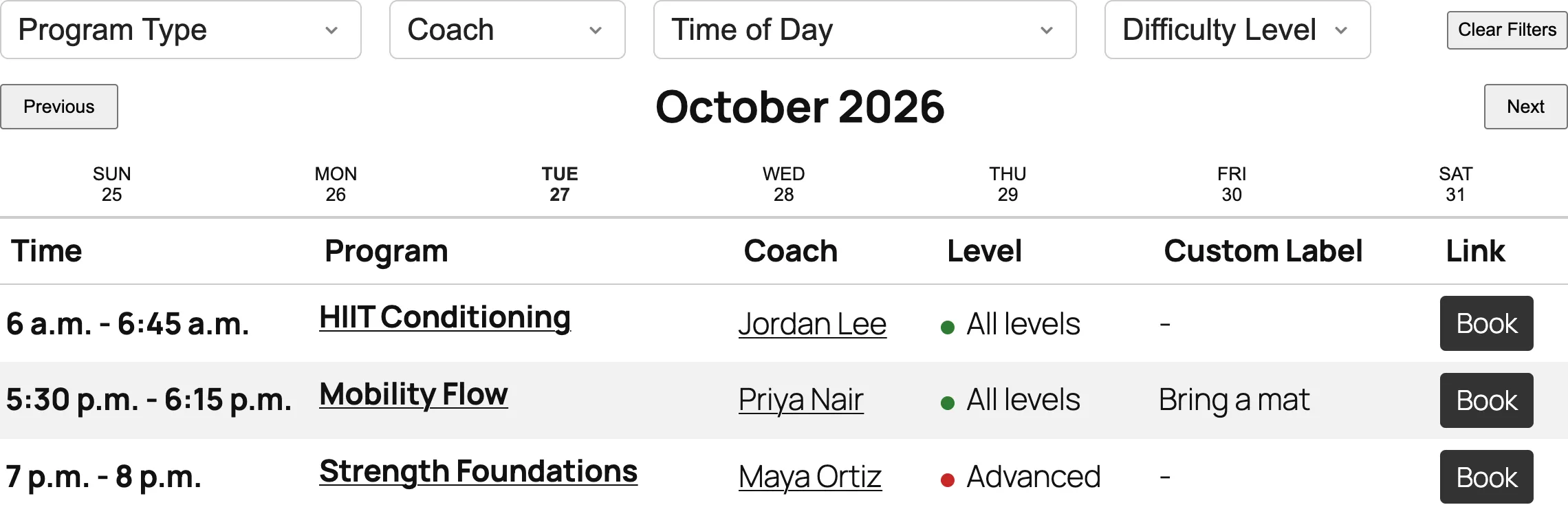
Section titled “Weekly View”The week’s days run Sunday to Saturday as tabs. The page opens on today’s tab. Previous and Next move a week at a time. Each row shows the time, program, instructor, level, custom label and a booking button. Program and instructor names link to their pages.
Month View
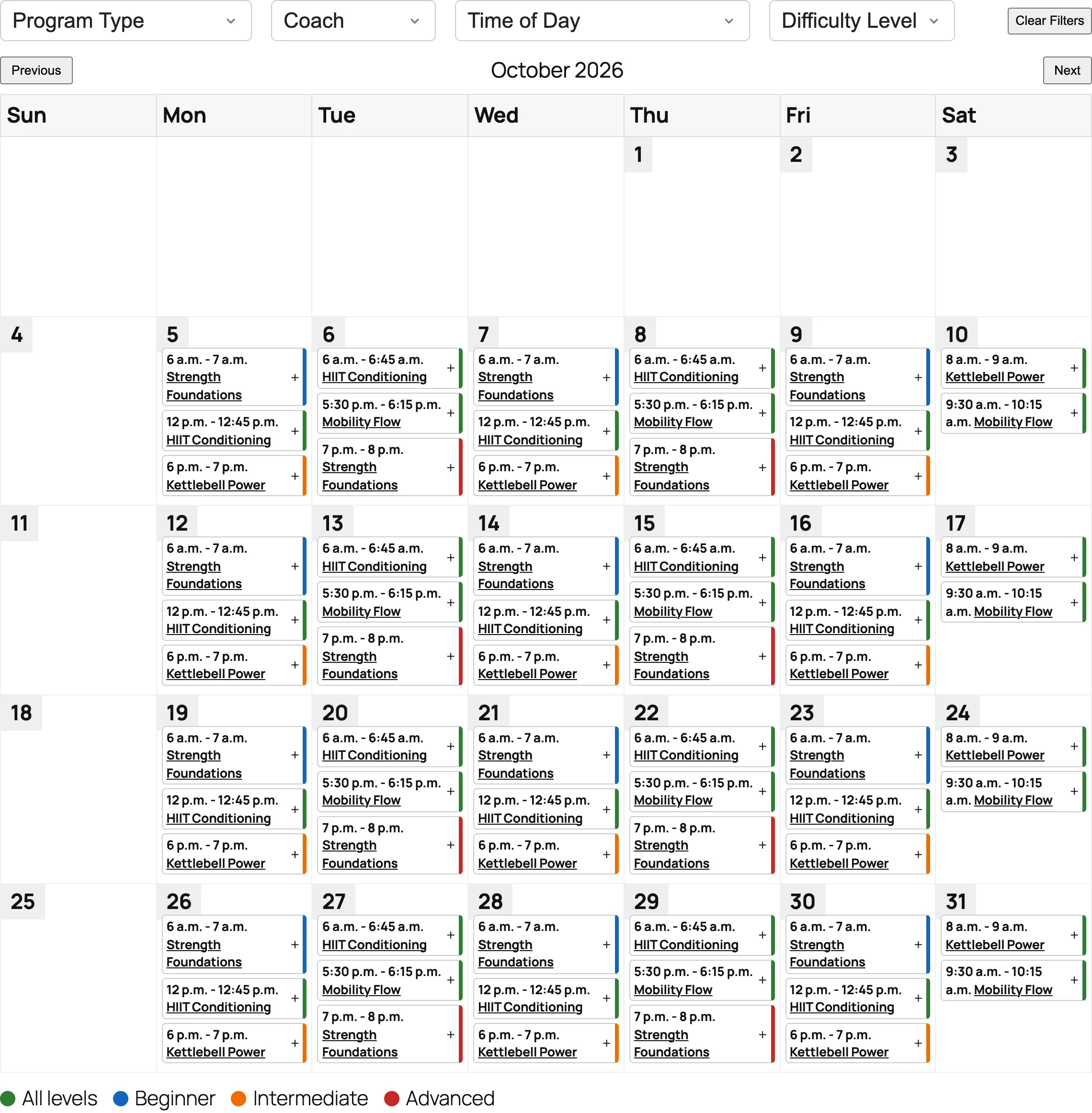
Section titled “Month View”A calendar of the whole month. Each session shows its time and program. With Condense Month View Details on (the default), visitors click a session to see the instructor, level, custom label and booking button. A key under the calendar explains the level colors.
On phones
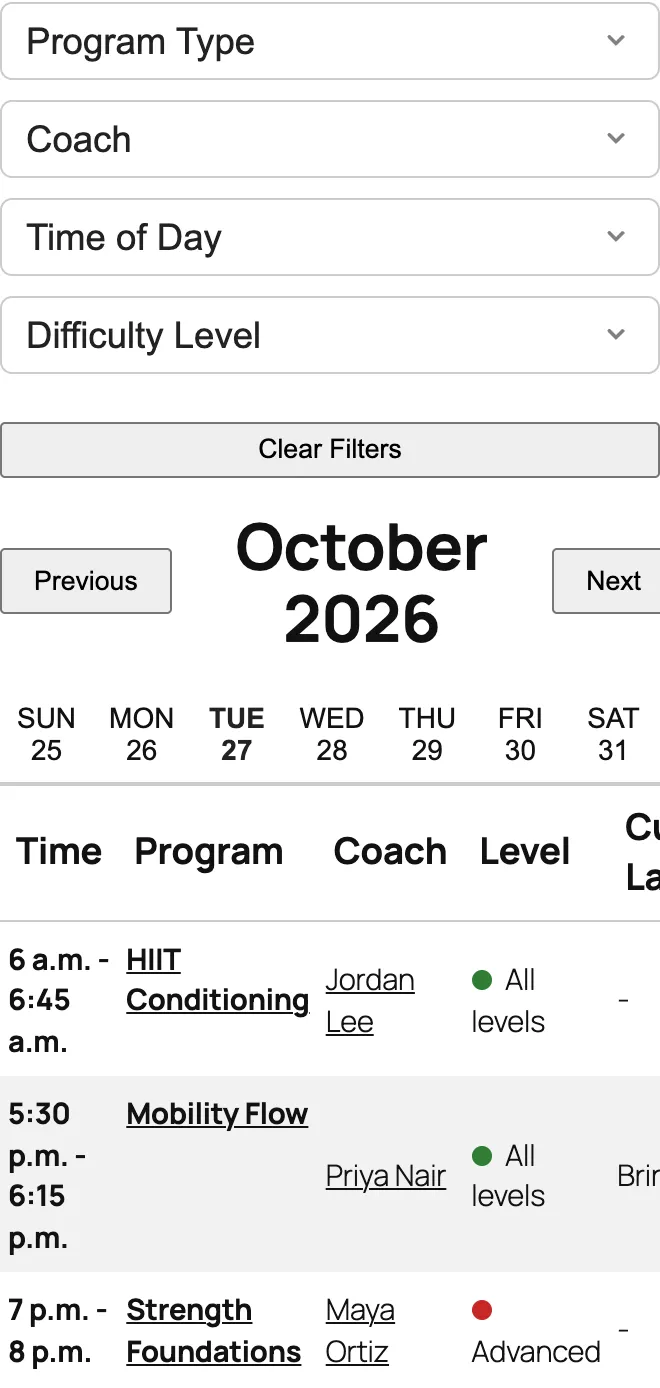
Section titled “On phones”Weekly View stacks the filters and shrinks the table. Month View switches to the weekly tabs on screens 767px wide or narrower, because a month grid doesn’t fit.
Dates and times
Section titled “Dates and times”- Times appear exactly as entered on the schedule, such as “6 a.m. - 6:45 a.m.”. They aren’t converted between time zones.
- “Today” is the date on the visitor’s own device.
Settings
Section titled “Settings”General tab: View Settings
Section titled “General tab: View Settings”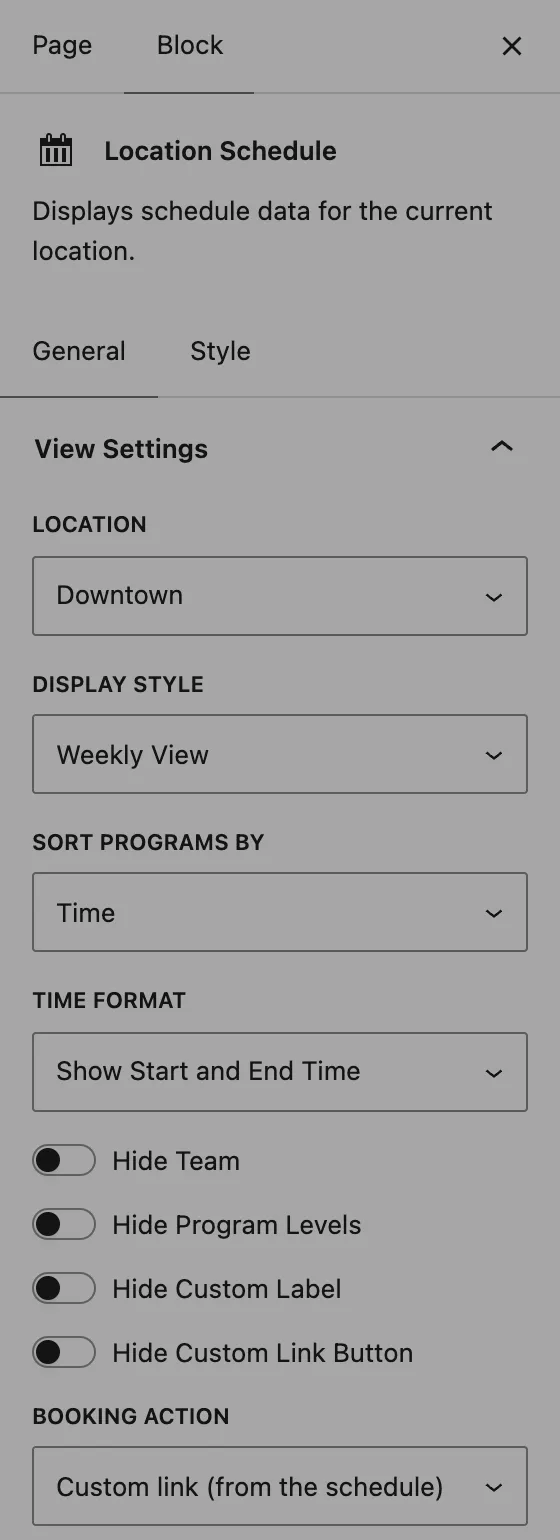
| Setting | What it does |
|---|---|
| Location | Which location’s schedule to show. Only top-level locations are listed; sub-locations don’t have schedules. |
| Display Style | Weekly View (day tabs and a table) or Month View (a calendar). |
| Sort Programs By | Order sessions within a day by Time (default), Program or Instructor. Sorting by program also draws a divider line between programs. |
| Time Format | Show Start and End Time (default) or Show Start Time Only. |
| Hide Team | Hides the instructor column and details, and keeps the instructor out of the booking form. |
| Hide Program Levels | Hides the level column, level details and the level colors. |
| Hide Custom Label | Hides the custom label column. You name this column in Settings → Gymmark, on the tab named after your programs (for example Class Settings). |
| Hide Custom Link Button | Hides the booking link buttons. Only applies when Booking action is Custom link. |
| Booking action | What the booking button does. See Booking buttons. |
| Form | Shown when Booking action is Integrated booking form. Choose a form, or leave Use default form. |
| Button label | Shown with Integrated booking form. The button text and its column title, such as “Book”, “Request info” or “Try it free”. |
| Hide Program Details | Hides the level, custom label and custom link button in one go. |
| Hide Program Links | Shows program names as plain text instead of links. |
| Hide Instructor Links | Shows instructor names as plain text instead of links. |
| Condense Month View Details | On by default. In Month View, sessions show only time and program until clicked. |
General tab: Filter Settings
Section titled “General tab: Filter Settings”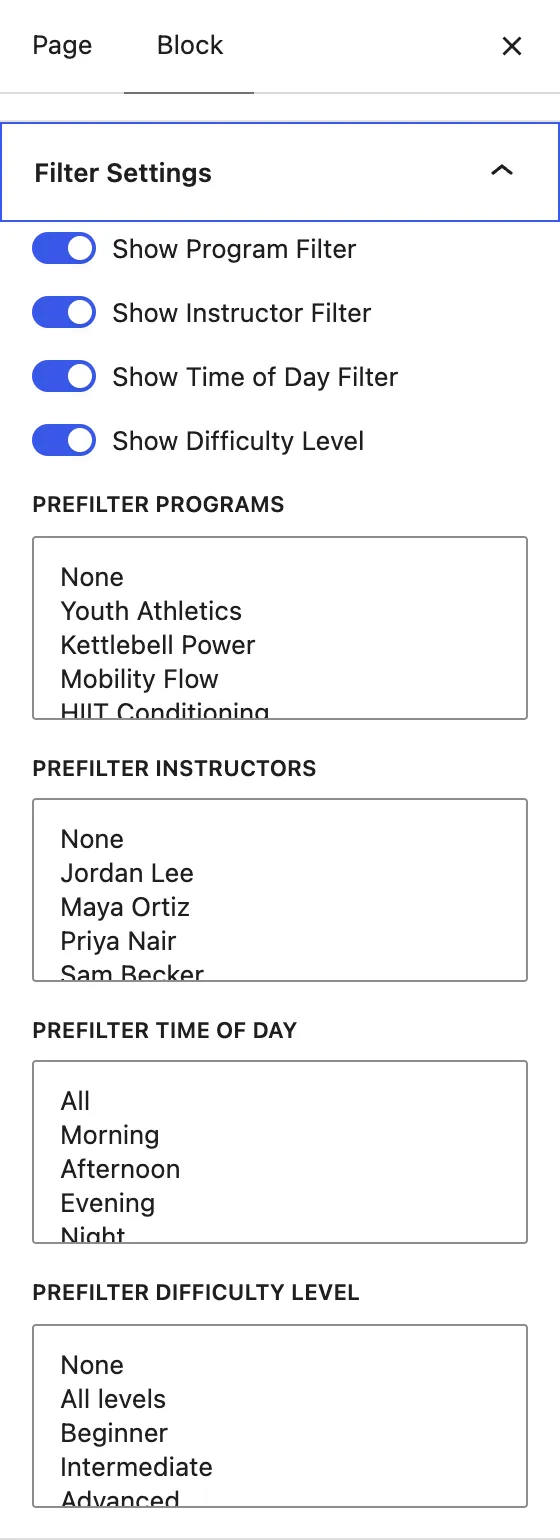
| Setting | What it does |
|---|---|
| Show Program Filter | A dropdown listing the programs on the visible week or month. |
| Show Instructor Filter | A dropdown listing every instructor on the site. |
| Show Time of Day Filter | Morning (5 AM–12 PM), Afternoon (12–5 PM), Evening (5–9 PM), Night (9 PM–5 AM). |
| Show Difficulty Level | A dropdown of your levels. |
| Prefilter Programs | Shows only the programs you pick. Hold Ctrl (Windows) or Cmd (Mac) to pick several. |
| Prefilter Instructors | Shows only sessions taught by the instructors you pick. |
| Prefilter Time of Day | Shows only sessions in the parts of the day you pick: Morning, Afternoon, Evening or Night. |
| Prefilter Difficulty Level | Shows only sessions at the levels you pick. Appears when Show Difficulty Level is on. |
Prefilters combine: Prefilter Programs: HIIT Conditioning with Prefilter Time of Day: Morning shows only morning HIIT. Leave a prefilter on None to show everything. Visitors’ filters then work within what the prefilters allow.
The Clear Filters button on the page resets all four dropdowns.
Style tab
Section titled “Style tab”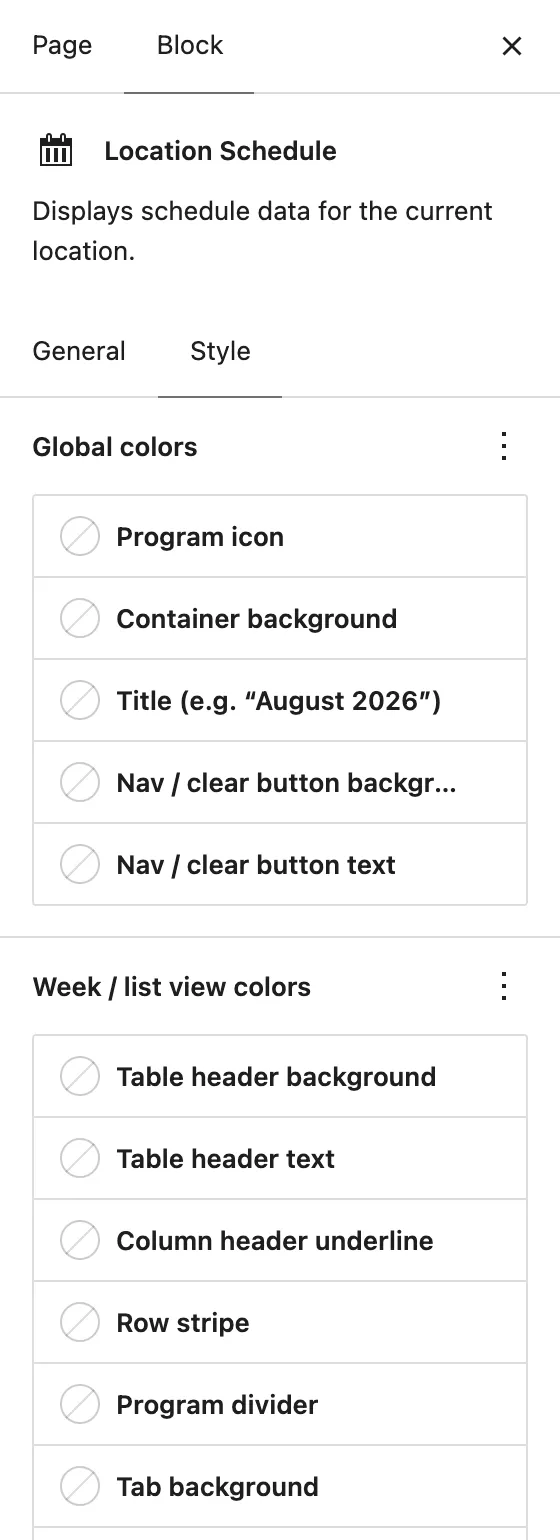
Every color is optional. Leave one empty to use your theme’s color.
| Group | Settings |
|---|---|
| Global colors | Program icon, container background, title (the month name), nav and clear button background and text |
| Week / list view colors | Table header background and text, column header underline, row stripe, program divider, tab background and text, active tab background and text |
| Month view colors | Day cell background and border, weekday header background and text, date number background and text, event block background, border and text |
| Filter colors | Filter background, border and focus outline |
| Layout & effects | Container border radius, container shadow, filter dropdown radius, base font size (0 = theme default) |
| Reset | Reset all styling clears every style setting |
Program icons show in Weekly View only, so Program icon color has no effect in Month View.
Booking buttons
Section titled “Booking buttons”Choose what the button on each session does with Booking action:
Custom link (from the schedule) (default)
: Each session uses the Link Text, Link URL and Link Class entered on the schedule. Sessions without a link URL have no button. Links to other sites open in a new tab. Links starting with # stay on the page, so they can open a pop-up from your theme.
Integrated booking form : Every session gets a button that opens GymMark’s booking pop-out, pre-filled with the program, time, location and instructor. While visitors can’t see GymMark forms yet, they get each session’s own link instead. That’s while Forms mode is Off, or in Test mode for visitors who aren’t logged in. Switching to Live turns on the form buttons for everyone.
Common setups
Section titled “Common setups”- A page per location: on each location’s page, add Location Hours and Location Schedule, and choose that location in both.
- One schedule page for a single-location gym: add the block to a “Schedule” page and choose Weekly View. It’s the easiest to read on phones.
- Lead capture instead of booking: set Booking action to Integrated booking form and Button label to something like “Try it free”. Test it in Test mode, then switch Forms mode to Live.
- A page for one program: on a program’s page, set Prefilter Programs to that program to show only its sessions.
- Early-bird or kids’ schedules: use Prefilter Time of Day (Morning) or Prefilter Difficulty Level to make focused schedules for landing pages.
Limitations
Section titled “Limitations”- The Location Selector block doesn’t control this block. Choosing a location in the selector doesn’t change which schedule is shown. Set Location on each block.
- A prefilter doesn’t change the visitor’s dropdown. With Prefilter Time of Day: Morning, the visitor dropdown still reads “Time of Day”. Consider turning off a filter you’ve prefiltered.
- The instructor filter lists every instructor on the site, including ones not on this schedule.