
Add programs and instructors
Your schedule is built from three lists: levels, programs and instructors. Set them up first, because the schedule editor only lets you pick from what exists.
1. Add levels (do this first)
Section titled “1. Add levels (do this first)”Levels, such as “Beginner” or “All levels”, show on the schedule with a colored dot.
- Go to Settings → Gymmark and open the tab named after your programs. It’s Class Settings on a new install.
- Under Class Levels, click Add Class Level. Both are named after your programs, for example Program Levels and Add Program Level.
- Type a Name and pick a Color. Add as many as you need.
- Click Save Changes.
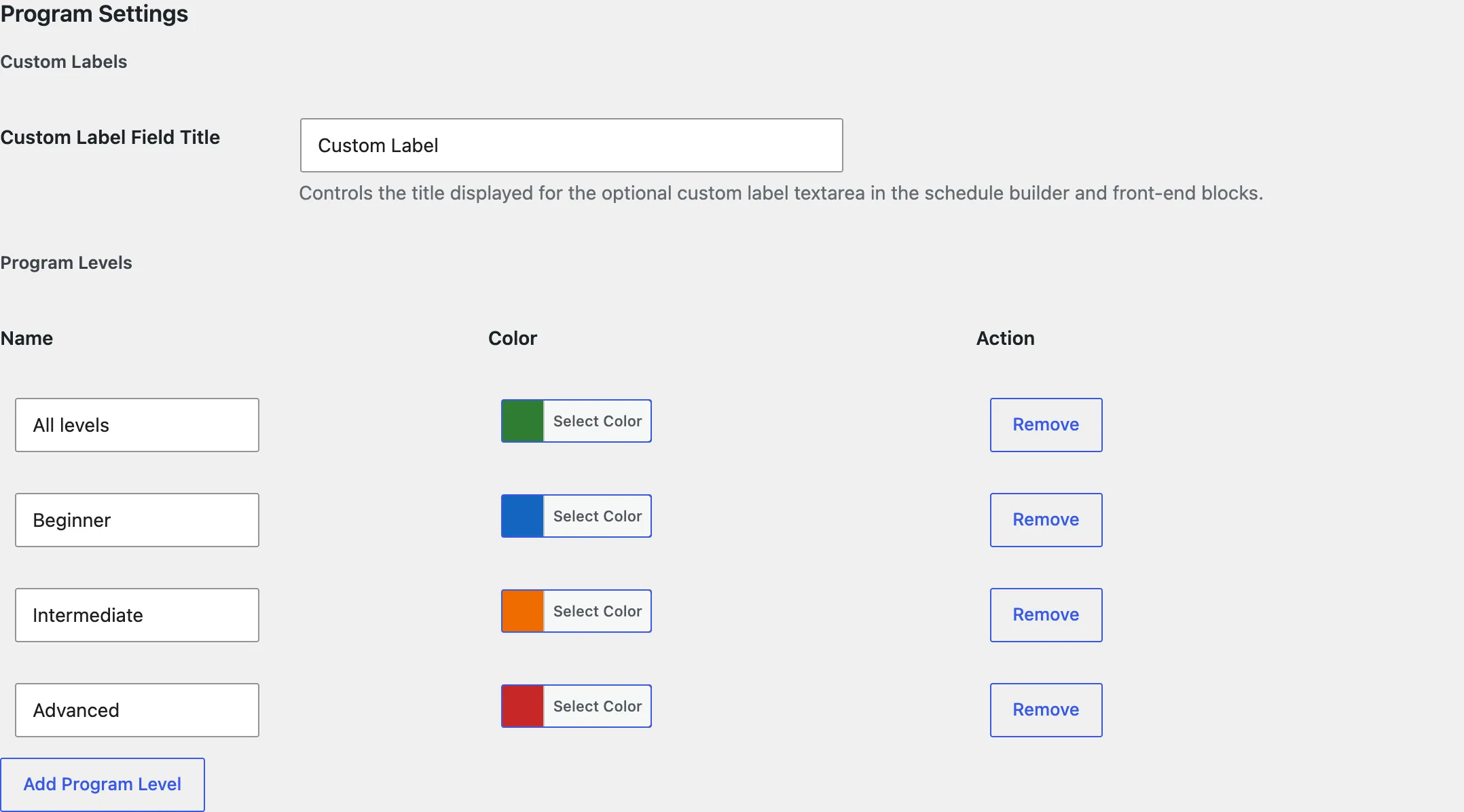
On the same tab, Custom Label Field Title names an optional extra column on your schedule, such as “Bring” or “Room”.
2. Add programs
Section titled “2. Add programs”- Go to Classes → Add New Class. If you renamed programs, it’s named to match, for example Programs → Add New Program.
- Type the program’s name as the title, for example “HIIT Conditioning”.
- Write a description in the page content. Add a short summary in Excerpt.
- Set a Featured image. The Classes block shows it on program cards.
- Optional: in the Class Icon box, click Upload Icon and choose an SVG icon. It shows next to the program on the weekly schedule. Uploading SVGs needs an administrator (on multisite, a network super admin).
- Click Publish.
3. Add instructors
Section titled “3. Add instructors”- Go to Instructors → Add New Instructor, or your name for it, such as Coaches → Add New Coach.
- Type the instructor’s name as the title.
- Write their bio in the page content. Add a featured image as their photo.
- In Instructor Details, enter a Role / Title, such as “Head Coach”. The Instructor Card block can show it under their name.
- Click Publish.
Check it worked
Section titled “Check it worked”- Your levels appear on the settings tab after saving.
- Programs and Instructors list what you added.