
Install GymMark and add your license
Install the plugin, add your license key so you get updates, and choose what your site calls programs and instructors.
Before you start
Section titled “Before you start”- You need to be a WordPress administrator on the site.
- You need the GymMark plugin
.zipfile and your license key. Both come from GymMark. - Running a multisite network? Each site has its own GymMark settings. Install once for the network and set up each site separately.
1. Install the plugin
Section titled “1. Install the plugin”- In WordPress, go to Plugins and open the Add Plugins screen.
- Click Upload Plugin, choose the GymMark
.zipfile and click Install Now. - Click Activate. The plugin appears in your plugin list as GymMark Extension.
You’ll now see new menus: Locations, Classes, Instructors, Events, Reviews, Offers and Forms, plus Settings → Gymmark.
2. Add your license key
Section titled “2. Add your license key”- Go to Settings → Gymmark. The Configuration tab opens.
- Paste your key into License Key.
- Click Save Changes at the bottom of the page.
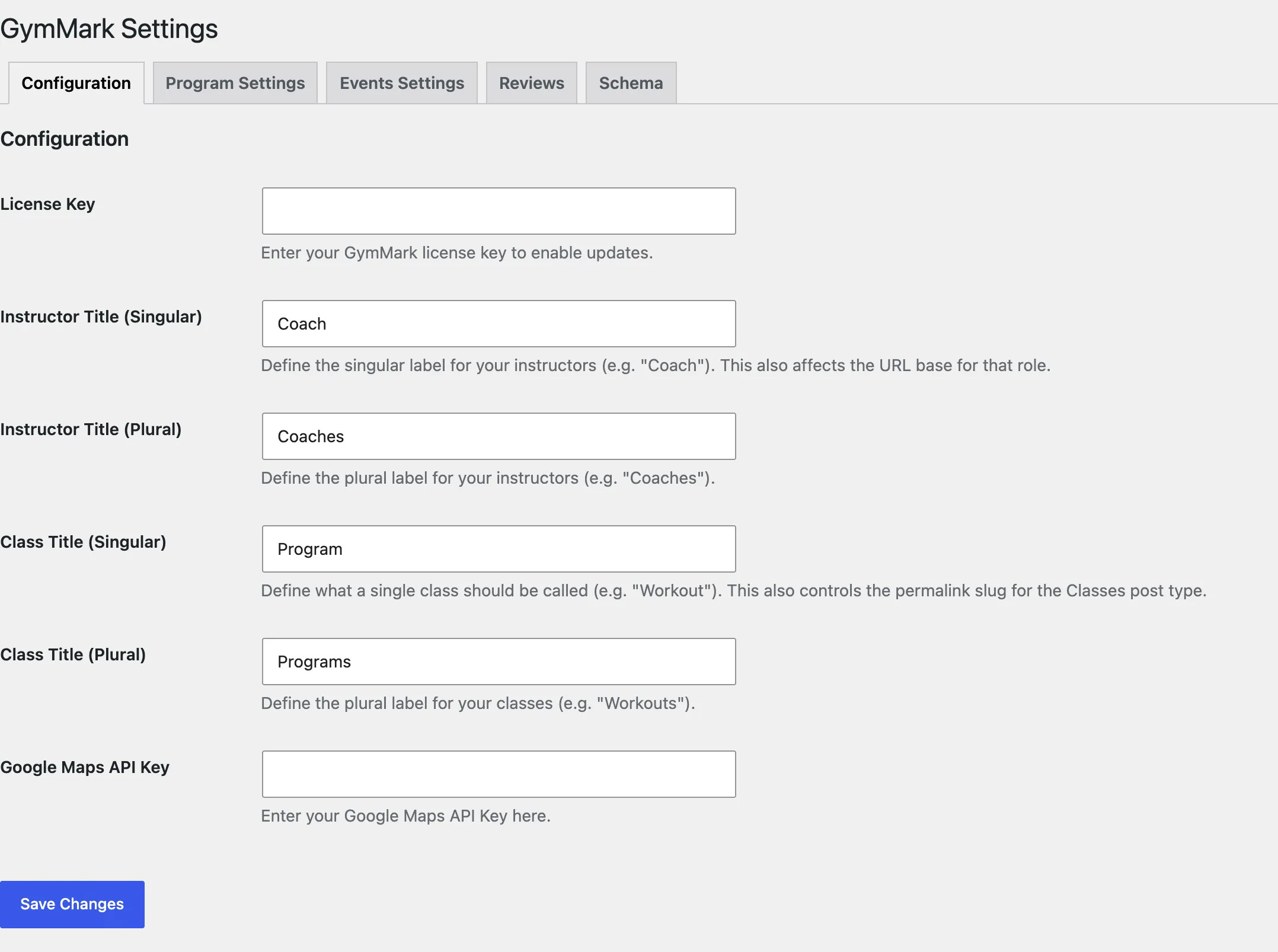
You should see License activated successfully. Automatic updates are enabled.
A valid license does two things:
- GymMark updates appear in Dashboard → Updates, like any other plugin.
- It unlocks the Google reviews connection on the Reviews tab.
If you see License activation failed, check the key for extra spaces and save again. If it still fails, contact GymMark support with the message shown.
3. Choose what to call programs and instructors
Section titled “3. Choose what to call programs and instructors”On the same Configuration tab:
| Setting | What it’s for | Default |
|---|---|---|
| Instructor Title (Singular) | One instructor, such as “Coach”. It’s also the start of instructor page addresses, for example /coach/maya-ortiz/. |
Instructor |
| Instructor Title (Plural) | The menu name, such as “Coaches”. | Instructors |
| Class Title (Singular) | One class, such as “Program” or “Workout”. | Class |
| Class Title (Plural) | The menu name, and the start of program page addresses, for example /programs/hiit/. |
Classes |
These names appear in menus, the schedule editor, block settings and on your site. The rest of these docs say Programs and Instructors.
Click Save Changes. If program or instructor pages then show “not found”, go to Settings → Permalinks and click Save Changes once. That refreshes WordPress’s page addresses.
4. Add your Google Maps API key (optional)
Section titled “4. Add your Google Maps API key (optional)”Google Maps API Key on the same tab is used to look up each location’s map position from its address, and by the Location Finder block’s map. You can skip it and type the coordinates in yourself.
Check it worked
Section titled “Check it worked”- Settings → Gymmark shows no red license warning at the top of admin pages.
- The admin menu shows your names, for example Programs and Coaches.
Next: Add your first location