
Build your class schedule
Each location has its own schedule. You add a session once, say “HIIT Conditioning, Mondays 6–6:45 a.m.”, and set it to repeat. The Location Schedule block then shows it on every matching day.
Before you start
Section titled “Before you start”- You have a location (step 2).
- You have at least one level, plus the programs and instructors you’ll schedule (step 3). The editor can’t save a session without a level.
1. Open the schedule
Section titled “1. Open the schedule”- Go to Locations and open the location.
- Open the Meta Boxes bar at the bottom of the editor, if it’s folded.
- Find the box named after your programs, such as Class Schedules or Program Schedules. It’s a month calendar.
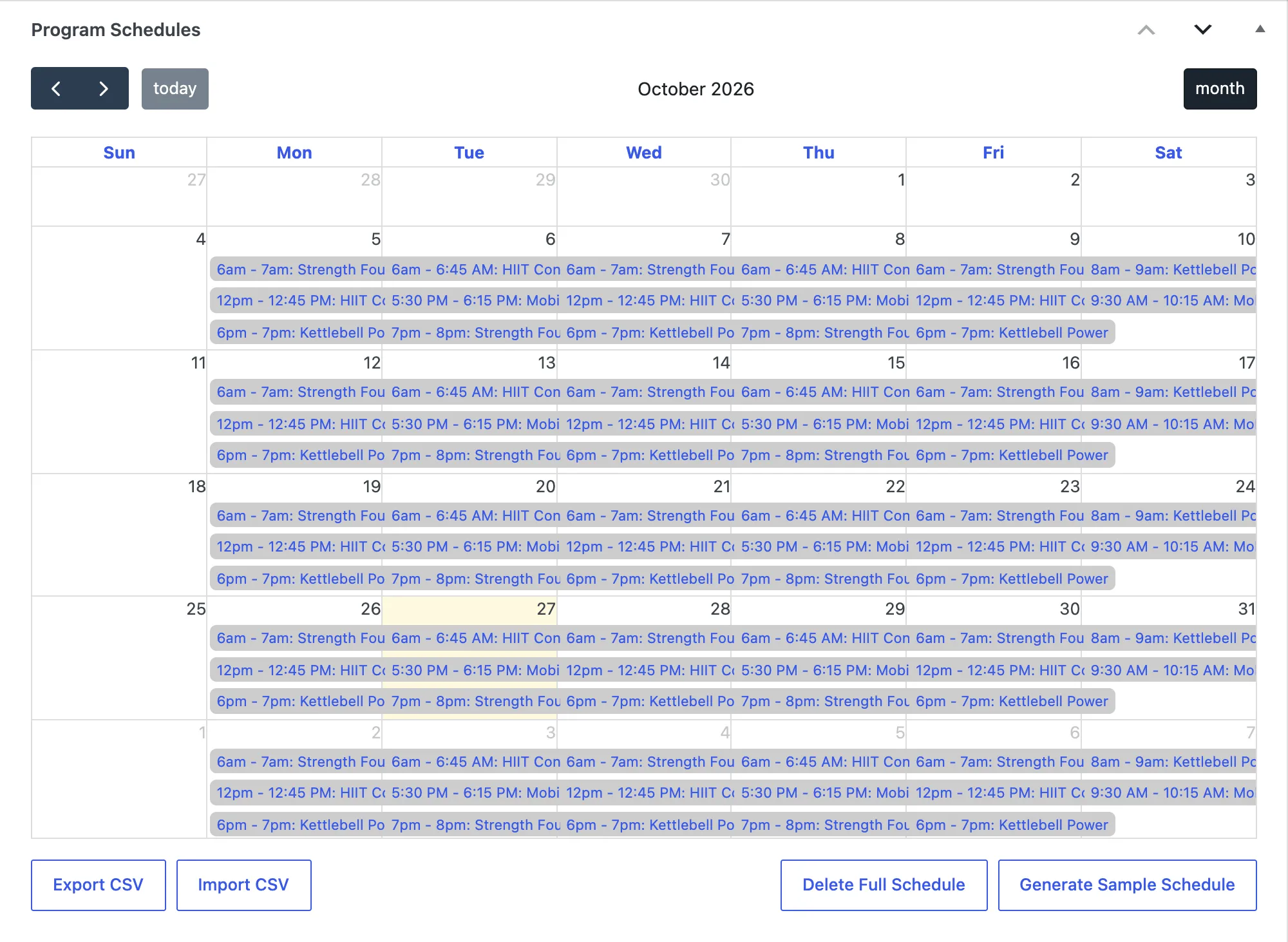
Only top-level locations have a schedule. Sub-locations don’t.
2. Add a session
Section titled “2. Add a session”- Click the date of the first session. For a weekly Monday class, click a Monday.
- Fill in the window that opens:
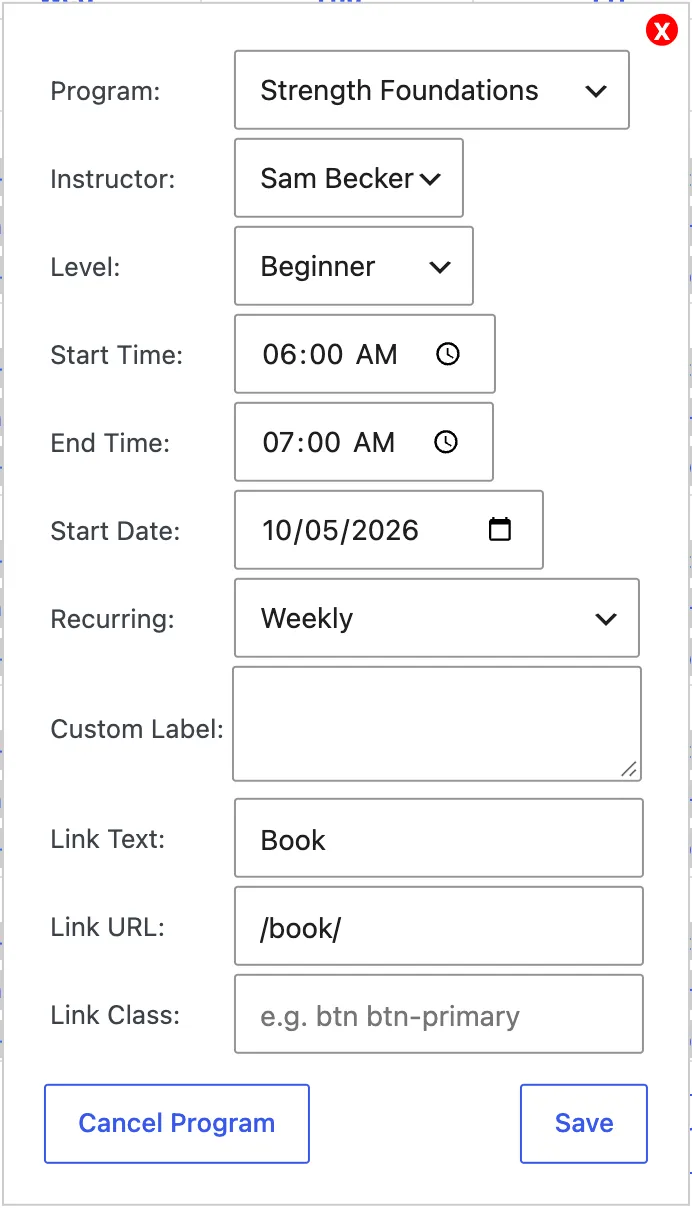
| Field | What to enter |
|---|---|
| Program | Pick a program, or Other (Custom Program) for a one-off name that isn’t a program. |
| Instructor | Who teaches it, or None. |
| Level | The level it’s for. |
| Start Time / End Time | When it runs. |
| Start Date | The first date it happens. Filled in from the date you clicked. |
| Recurring | One-Time, Weekly, Biweekly (every two weeks), Monthly (Same Date) (for example the 5th of each month) or Monthly (Same Weekday) (for example the first Monday of each month). |
| Custom Label | Optional extra info shown in its own column, such as “Bring a mat”. The field takes the name you gave it in settings. |
| Link Text / Link URL / Link Class | Optional booking link for this session, such as “Book” and https://yourbookingsystem.com/.... A URL starting with # stays on the page. Link Class adds a CSS class, for example one that opens a pop-up from your theme. |
- Click Save. The session saves straight away, so you don’t need to update the location afterwards.
Repeat for each session. A typical gym schedule has 10–30 sessions per location.
3. Change a session
Section titled “3. Change a session”Click the session on the calendar, change any field and click Save. The change applies to the whole series: every date that session repeats on.
Cancel one session
Section titled “Cancel one session”To skip one date, such as a holiday:
- Click that date’s session on the calendar.
- Click Cancel Program (named after your programs), then Cancel Only This Program.
The session stays on the calendar marked Canceled, and visitors no longer see it on that date. Changed your mind? Click it and choose Add Back to Schedule.
End or remove a series
Section titled “End or remove a series”Click a session in the series, then Cancel Program and one of:
- Cancel All Programs After This: the series stops after this date. Use it when a program ends, for example after December.
- Delete All Programs In Series: removes the series completely, past and future.
Other buttons under the calendar
Section titled “Other buttons under the calendar”| Button | What it does |
|---|---|
| Export CSV | Downloads the schedule as a spreadsheet file. |
| Import CSV | Replaces the whole schedule with a CSV file. Export first and edit that file. Sessions using a custom program name, and custom labels with line breaks, don’t survive the round trip, so check them afterwards. |
| Delete Full Schedule | Removes every session at this location. This can’t be undone, so export first. |
| Generate Sample Schedule | Replaces the schedule with a sample week. |
The CSV columns are class, instructor, level, start_date, start, end, recurring, custom_label, link_text, link_url, link_class, hidden_dates and hide_after_date. Instructors are stored by their ID number, times as 24-hour HH:MM and dates as YYYY-MM-DD.
Check it worked
Section titled “Check it worked”Sessions appear on the calendar on every date they repeat. To see them the way visitors will, add a Location Schedule block to a page in the next step.