
Add your first location
A location is one gym or studio. It holds the address, opening hours, map position and the class schedule. Every block that shows hours, a schedule or a map reads it from a location.
1. Create the location
Section titled “1. Create the location”- Go to Locations → Add New Location.
- Type the location’s name as the title, for example “Downtown”.
- Click Save (or Publish) once, so WordPress shows all of GymMark’s boxes.
GymMark’s boxes sit below the page content. On recent WordPress versions they’re folded into a bar labelled Meta Boxes at the bottom of the editor; click it to open them.
2. Address and phone
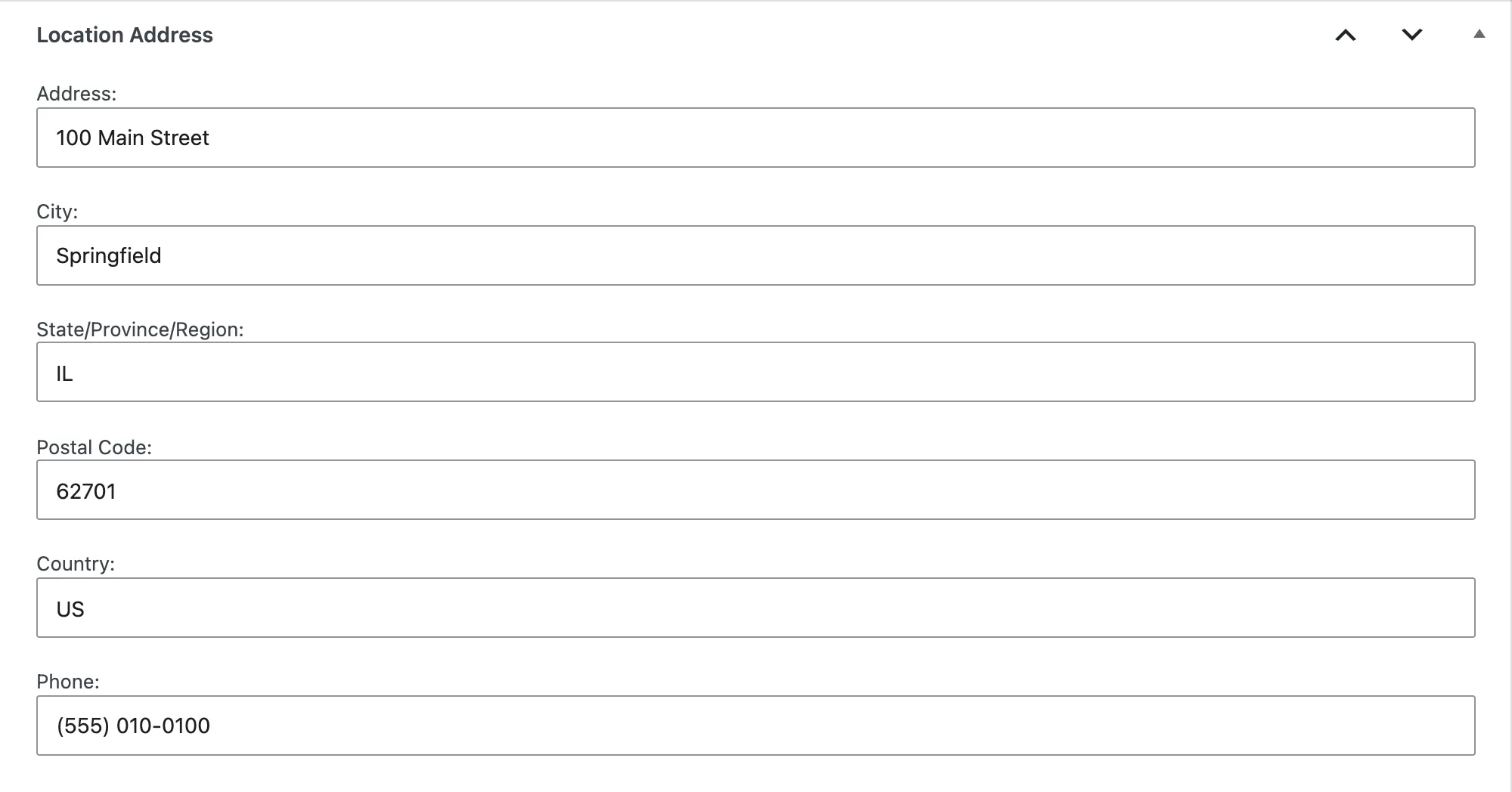
Section titled “2. Address and phone”Fill in the Location Address box: Address, City, State/Province/Region, Postal Code, Country and Phone.
3. Opening hours
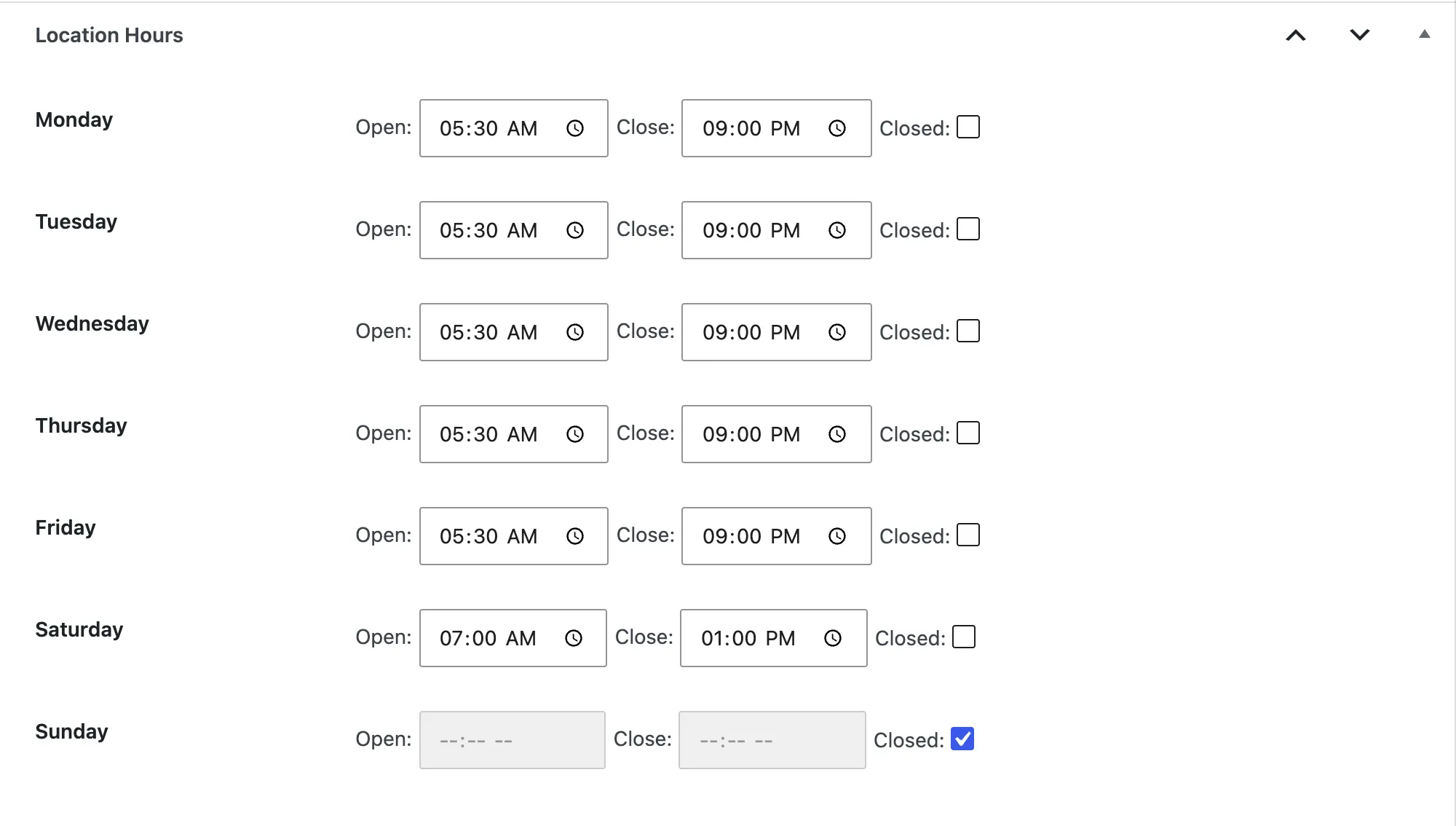
Section titled “3. Opening hours”In Location Hours, set Open and Close for each day. Tick Closed for days you’re closed. That greys out the times.
4. Map position
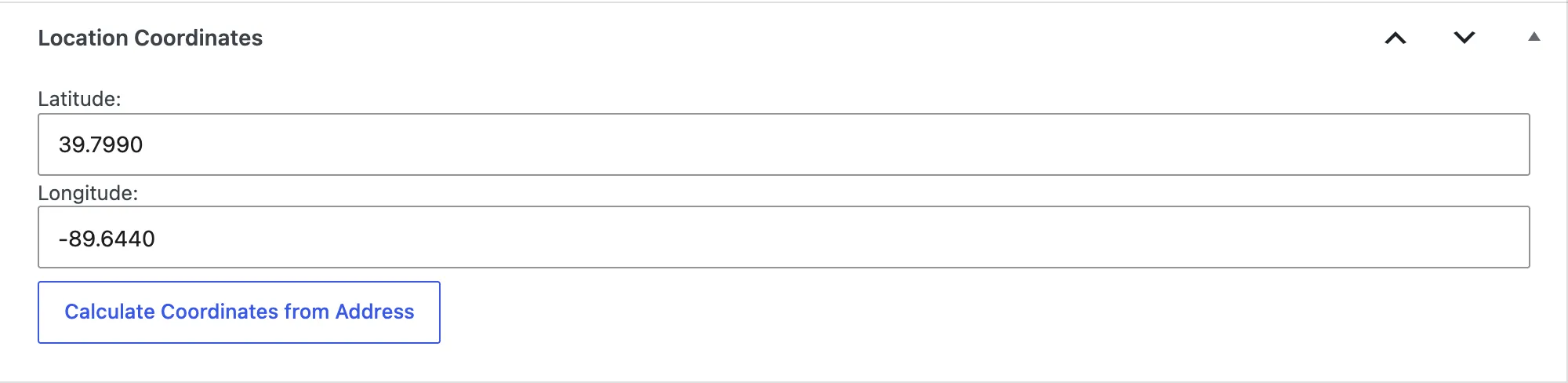
Section titled “4. Map position”In Location Coordinates, click Calculate Coordinates from Address. It needs a Google Maps API key in Settings → Gymmark → Configuration. If it works you’ll see Coordinates updated! Remember to save the post.
No key? Type the Latitude and Longitude yourself. Find them by right-clicking the building in Google Maps.
Click Save.
Sub-locations
Section titled “Sub-locations”A location can have a Parent (in the settings panel on the right). Use this for a studio inside a bigger gym, or a neighborhood page for SEO.
Sub-locations are simpler than top-level locations:
- They have no schedule, address, hours or map position of their own. Only the Review Property box appears.
- Blocks don’t list sub-locations; booking forms treat them as their parent.
Most gyms only need top-level locations.
About the location’s page
Section titled “About the location’s page”GymMark doesn’t add anything to the location’s public page by itself. You choose what appears there with blocks, such as Location Hours and Location Schedule. That’s step 5, Put GymMark on your pages.
Check it worked
Section titled “Check it worked”Locations lists your location. Opening it shows the address, hours and coordinates you entered.